🏥 What Is the Perfect Patient Management System?
The Perfect Patient Management System by SaruTech is a comprehensive and modular hospital software designed to manage everything related to patient care. From appointment scheduling and visit documentation to lab requests, prescriptions, insurance billing, and task assignments — it provides a unified, intuitive interface for daily clinical operations.
Whether you're a doctor, nurse, or receptionist, this system helps you:
- Stay organized
- Improve patient outcomes
- Keep medical records centralized
- Collaborate efficiently across departments
🧭 Overall Structure and Layout
When you launch the Patient Management page, you'll notice two main areas:
🔲 Sidebar Navigation
Located on the left, this section lets you switch between key operational views:
- Appointments
- Active Visits
- Tasks
🧩 Main Workspace
This is where detailed information appears — including patient files, visit actions, and sub-tabs related to billing, prescriptions, lab requests, etc.
Within each visit, there are multiple sub-tabs such as:
- Timeline
- Notes
- Forms
- Labs & Imaging
- Files
- Prescriptions
- Billing
- Insurance
- Tasks
- Patient History
- General Info
🗂 Key Modules You’ll Use
| Module | Purpose |
|---|---|
| Patients | View and manage all registered patients |
| Appointments | Book and manage upcoming patient visits |
| Visits | Access clinical workflows, patient status, and documentation |
| Prescriptions | Issue and track medication orders |
| Lab & Radiology | Submit and review diagnostic investigations |
| Notes & Forms | Add free-text notes or complete structured documentation |
| Billing | Create, view, and finalize bills with or without insurance |
| Tasks | Track tasks assigned to clinical or administrative staff |
| Files | Upload and view documents and media files |
| Insurance | Attach insurance policies and coverage to a patient or visit |
🧰 How to Navigate the System
🔹 The Toolbar
At the top of the screen is a persistent toolbar that provides:
- A back button to return to previous views
- A menu icon to show/hide the sidebar
- Save, comment, and close buttons (contextual to the visit or patient view)
🔹 Switching Between Tabs
Each visit opens with multiple sub-tabs . You can move between them as you manage different aspects of the visit.
For example:
- Log patient complaints in Notes
- Submit lab investigations via Labs & Imaging
- Add charges via the Bill tab
- Review prior surgeries in Patient History
📅 Appointment Management (Staff View)
Managing appointments is a crucial part of clinic workflow. The Appointments tab in the sidebar helps you track upcoming visits, prepare the schedule, and initiate care.
🔍 What You Can See
Each appointment is displayed as a card showing:
- Patient Name
- Date & Time
- Visit Type (Face-to-Face or Zoom)
- Assigned Department or Doctor
- Appointment Status (Pending, Confirmed, Completed, No Show, Cancelled)
You can filter appointments by:
- Department
- Assigned Doctor
- Appointment Status
- Date
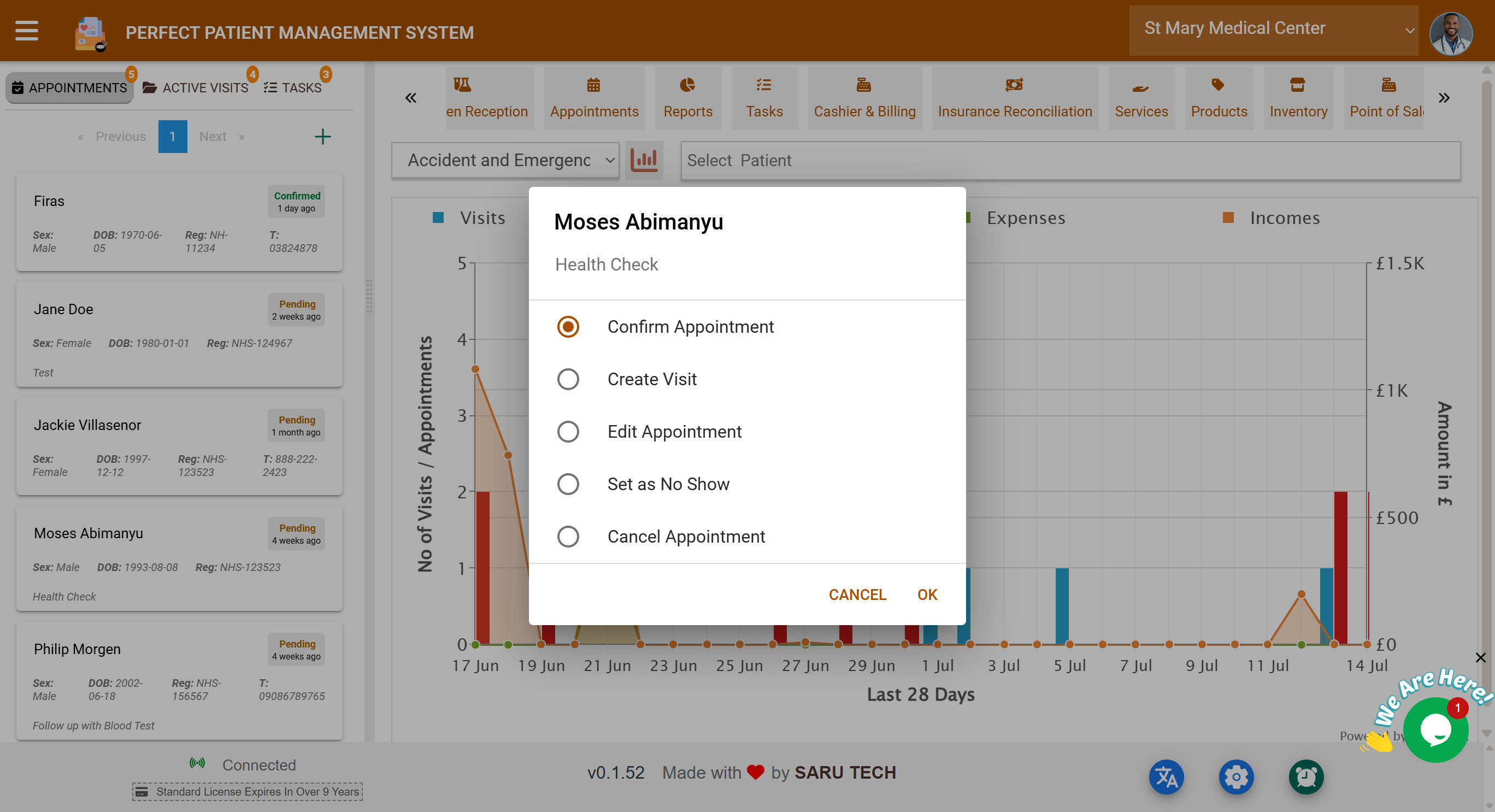
🔧 Actions You Can Take
- ✅ Confirm Appointment – Patient is expected to attend.
- 🚪 Create Visit – Opens a new clinical visit and marks the appointment as completed.
- 🖊 Edit Appointment – Change the date, time, type, or assigned doctor.
- ❌ Cancel Appointment – Removes the slot and marks it as cancelled.
- 🚫 Set as No Show – Records that the patient did not attend.
💡 Tip: The “Create Visit” action is your fastest route into a patient’s clinical workflow.
🌐 Patient Portal — Booking from the Patient’s Side
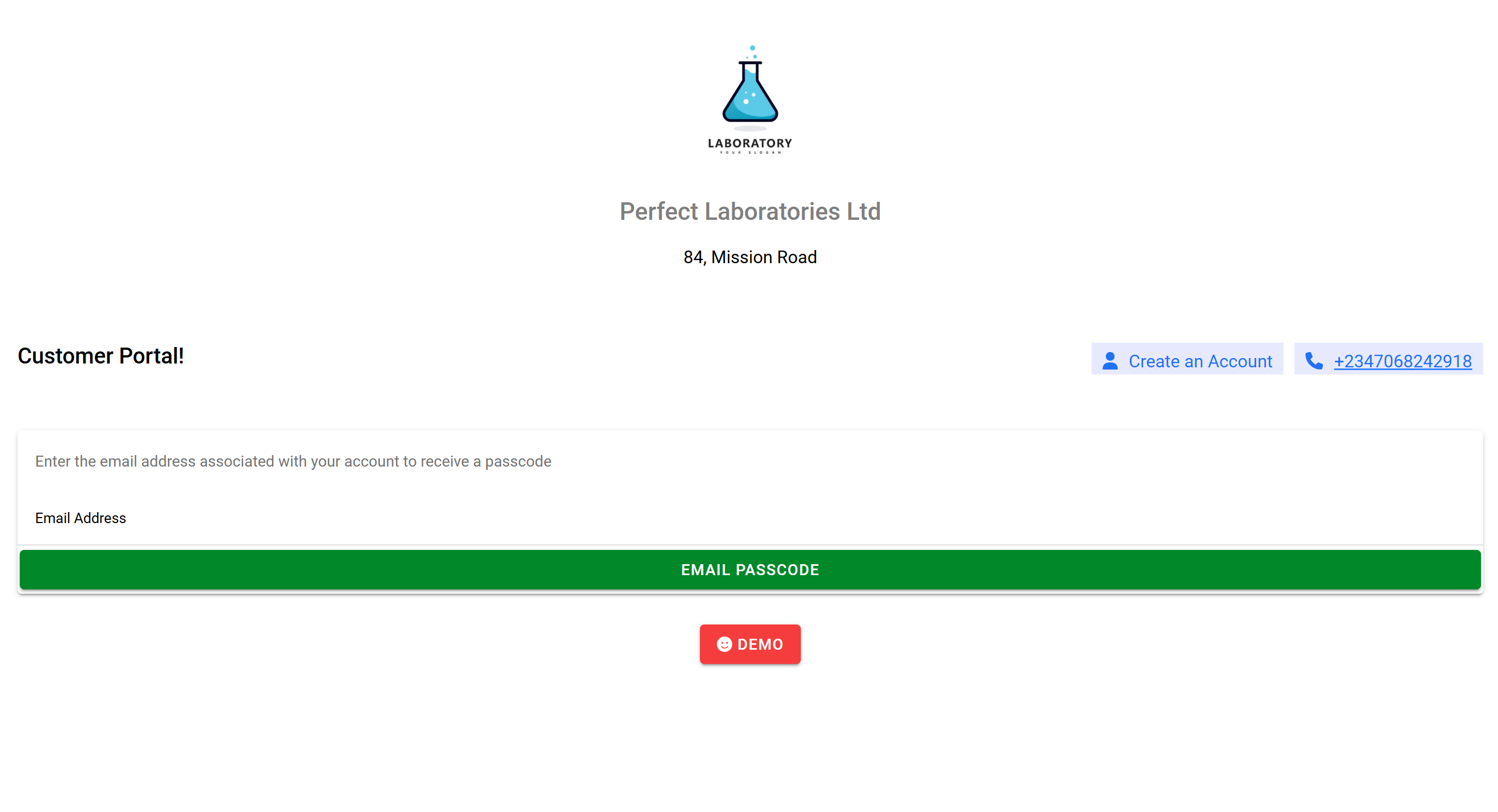
The system includes a Patient Portal , allowing patients to take control of their appointments.
🔓 Features Available to Patients
- Login securely using their credentials
- Browse Departments (e.g., Pediatrics, General Medicine)
- Select a Doctor within a department
- View Doctor Availability , including working hours and blocked days
- Choose a Time Slot that fits their schedule
- Book an Appointment
💳 Optional Online Payment
If the clinic has enabled online payments:
- Patients can pay immediately using PayPal or Stripe
- Admins receive notification of paid bookings
- Paid status appears in the billing tab during the visit
🛠 To enable this, administrators enter their Stripe/PayPal keys in system settings.
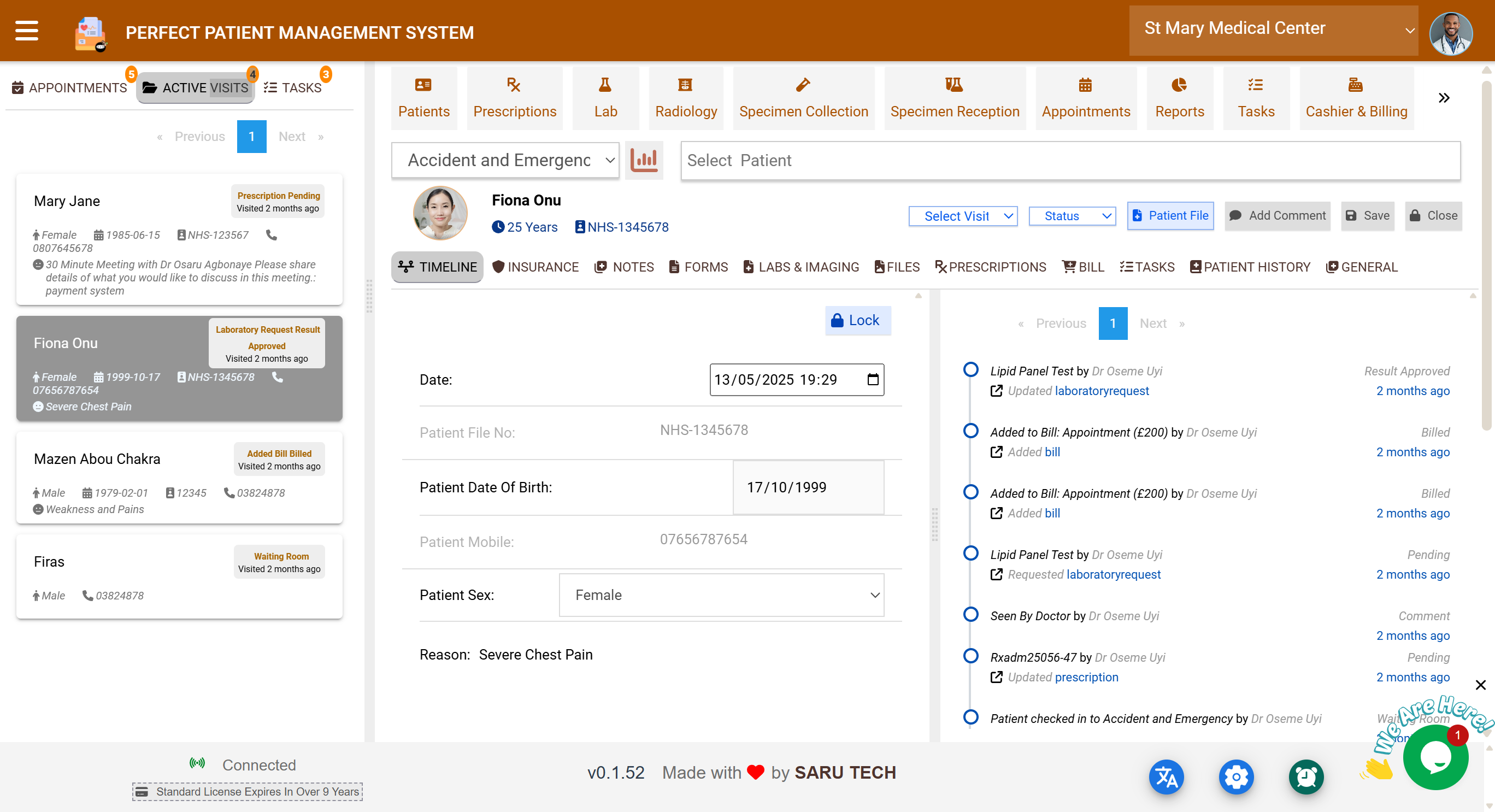
🧩 Visit Header
At the top of the main panel during a visit, you'll find:
- Patient demographics (name, file number, age)
- Current visit status and stage (editable dropdowns)
-
Action buttons:
- 🗃 View full patient file
- 💬 Add comment to timeline
- 💾 Save updates
- 🔒 Close visit when complete
- A Visit Selector Dropdown to switch between a patient’s previous visits
🧷 Visit Sub-Tabs Overview
Once a visit is active, the patient’s file is divided into clearly organized tabs . Each tab focuses on a different part of the clinical workflow. You’ll move between them as you provide care, document findings, and manage administrative tasks.
| Tab | Purpose |
|---|---|
| Timeline | View all events and updates related to the visit chronologically |
| Notes | Write free-form clinical notes |
| Forms | Fill structured medical or administrative forms |
| Labs & Imaging | Order lab tests and radiology procedures |
| Prescriptions | Create and manage medication prescriptions |
| Files | Upload or preview documents and attachments |
| Bill | Add charges and track payments |
| Insurance | Link or edit insurance policy for visit coverage |
| Tasks | Assign and complete visit-specific tasks |
| Patient History | View and update medical, drug, and social history |
| General | Edit demographic and background information |
🕓 Timeline Tab
The Timeline is the heart of visit tracking. It automatically logs every action taken during the visit.
Each entry includes:
- Description (e.g., “Lab Test Ordered”, “Prescription Issued”)
- Who performed the action
- Time of action
- Optional status update
- Direct links to related items (like notes, forms, or lab reports)
🧠 Use this to understand the full history of a visit without switching between tabs.
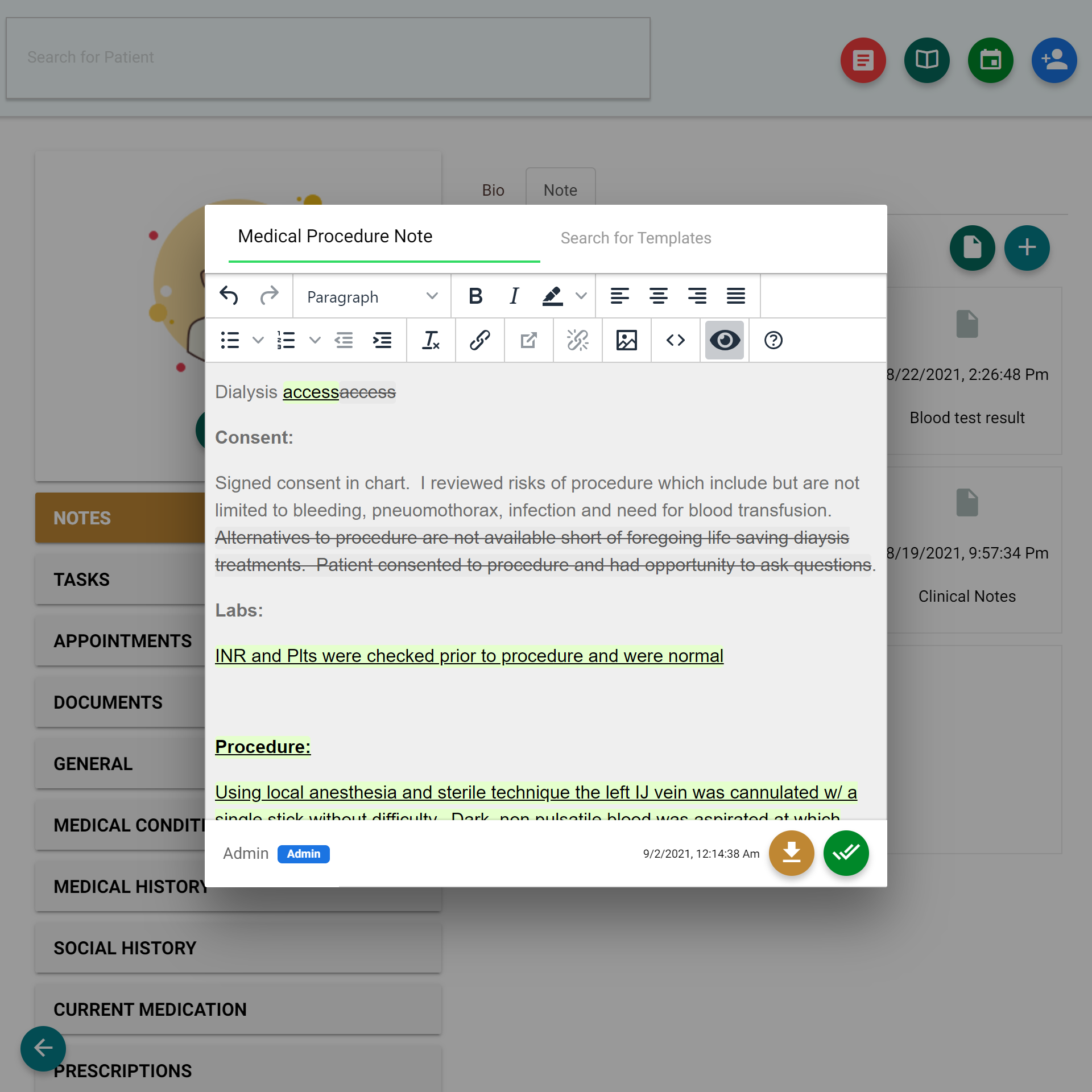
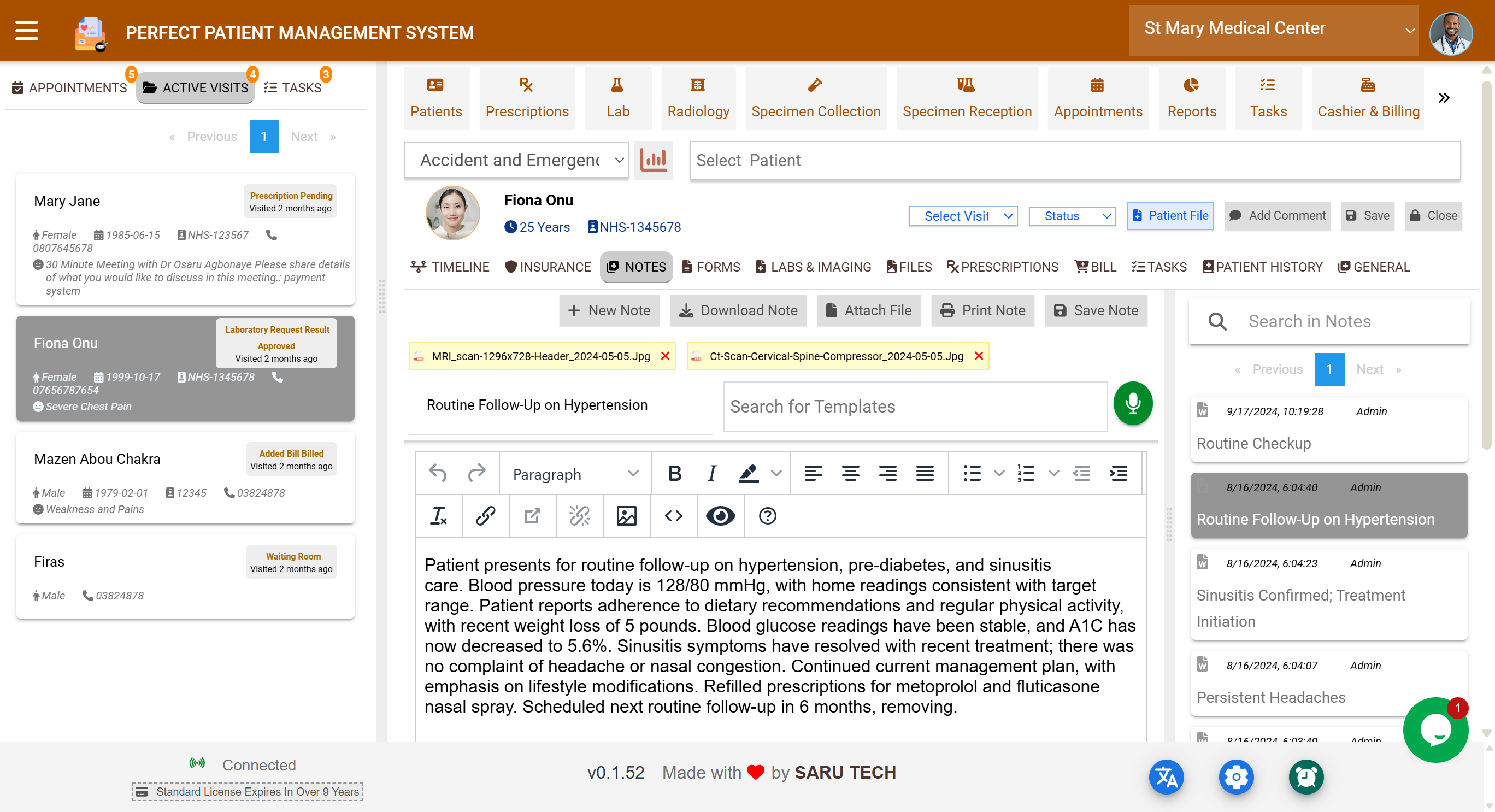
📝 Notes Tab
Use this section for general, free-form clinical notes such as:
- Chief complaints
- Observations
- SOAP notes
- Communication logs
Each note:
- Can be written using a rich-text editor
- May include attachments (e.g., images or PDFs)
- Automatically appears in the Timeline
🖨 You can also print or download notes, and each entry shows the staff member who authored it.
📄 Forms Tab
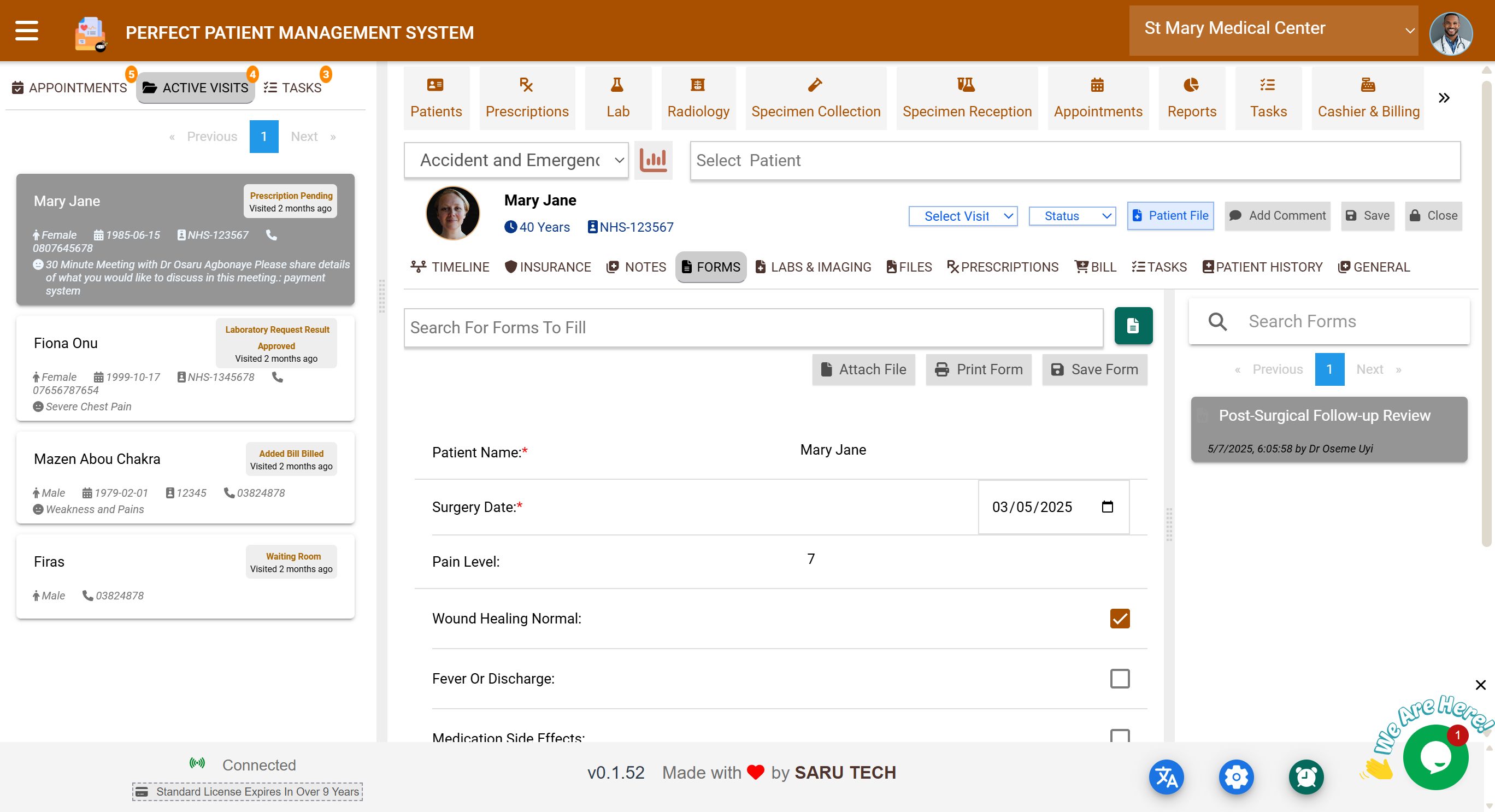
Forms are ideal for structured documentation. You can:
- Search and select from existing templates (e.g., “Admission Form”)
- Fill out fields like vital signs, checkboxes, dropdowns, and text areas
- Attach files to the form (e.g., signed consents)
- Save the form to be reused in follow-up visits
🧾 Once saved, forms are linked to the visit, visible in the Timeline, and tagged with creator and last editor.
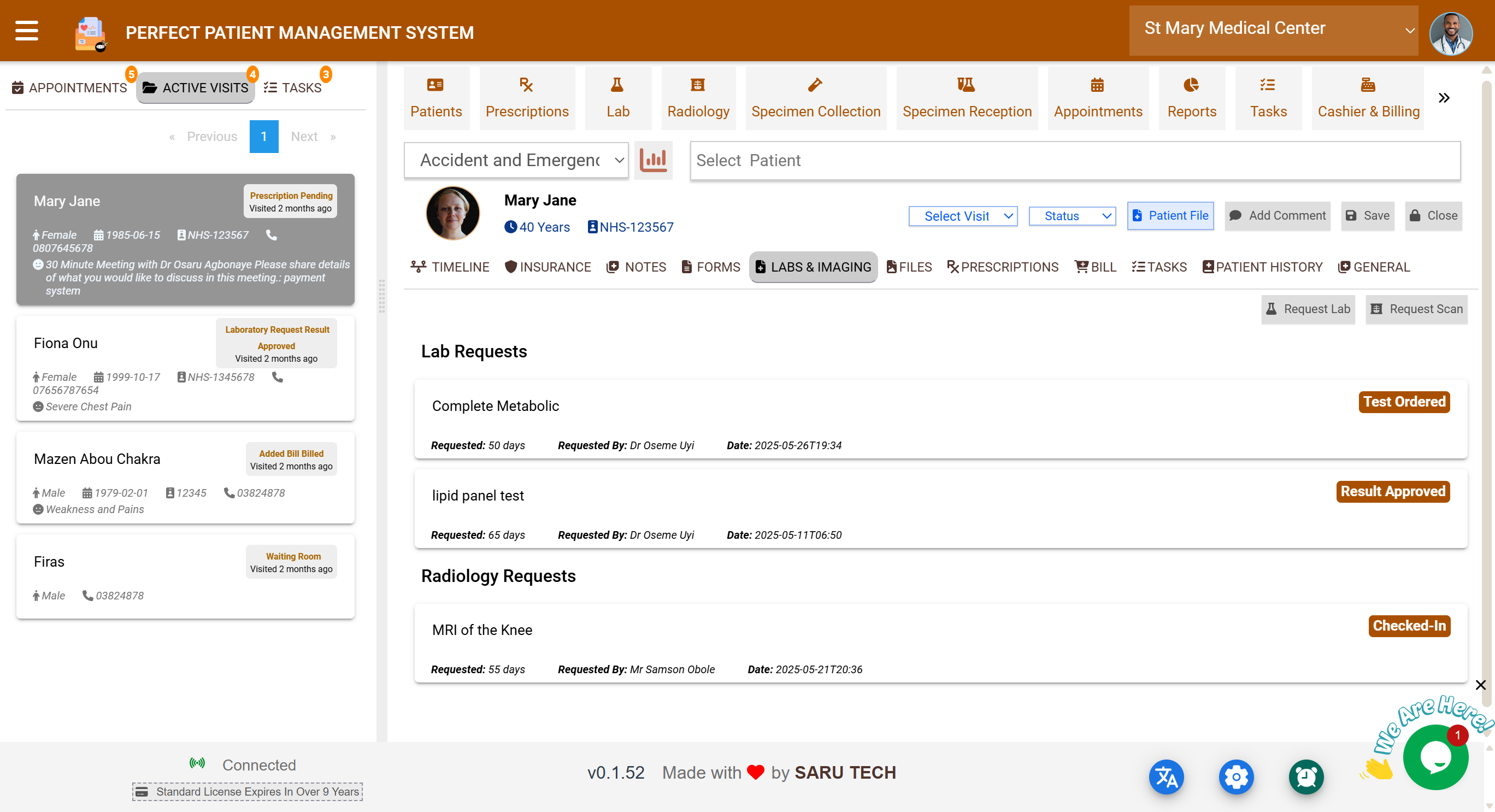
🔬 Labs & Imaging Tab
This tab handles:
- Lab test orders (e.g., Full Blood Count, Malaria)
- Radiology requests (e.g., X-Ray, CT Scan)
🧪 For each request:
- Select the procedure
- Mark if it’s outsourced
- Add reasons or clinical notes
- Track the status (e.g., Specimen Received, Result Approved)
✅ All results appear in the Timeline and can be approved, revised, or printed.
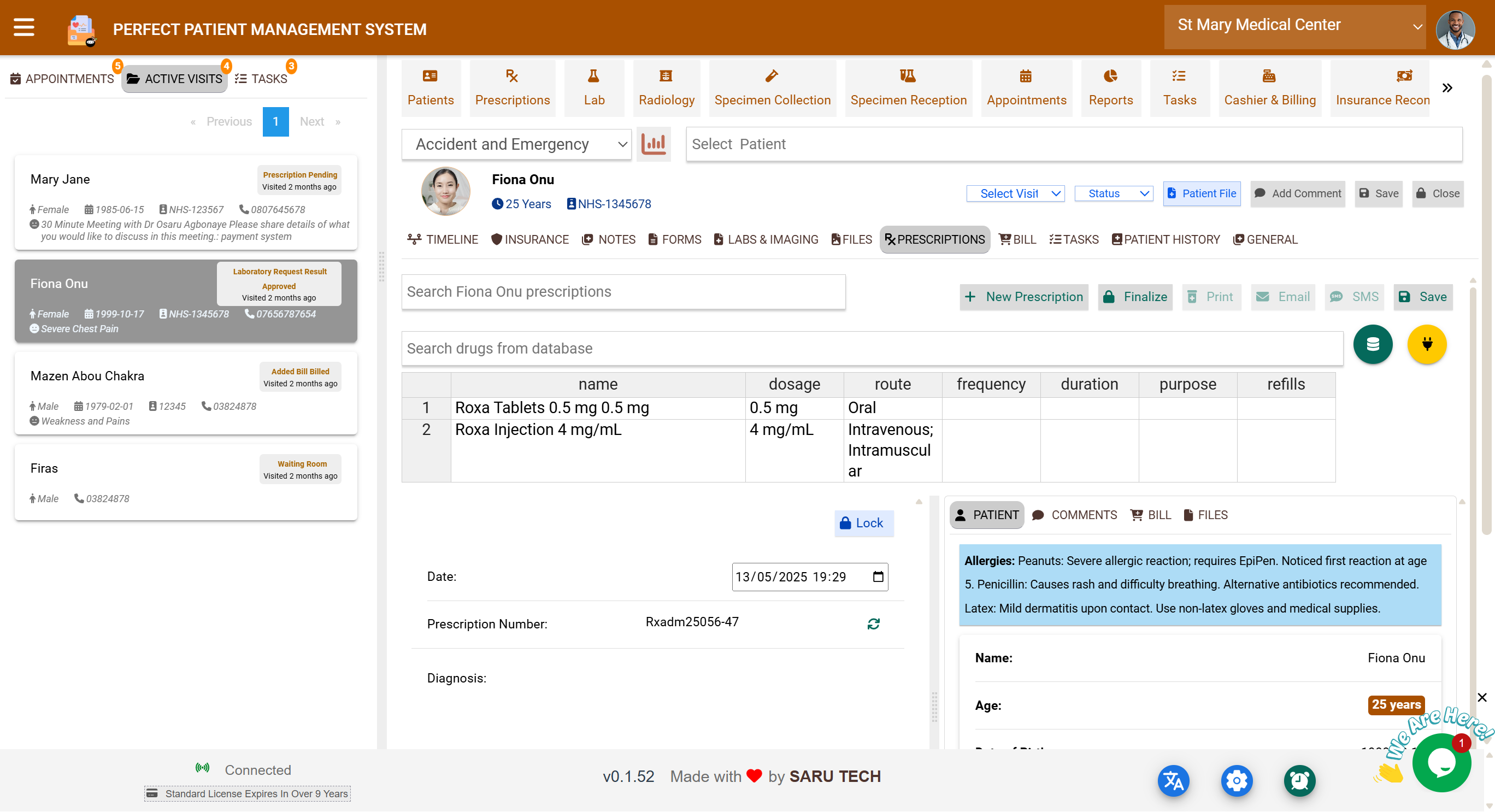
💊 Prescriptions Tab
This is where medical staff issue medications for the current visit.
🧾 How to Prescribe
Click “New Prescription” and enter:
- Medication Name (auto-complete supported)
- Dosage (e.g., 500mg)
- Route (e.g., Oral, Intramuscular)
- Frequency (e.g., Twice Daily)
- Duration (e.g., 5 days)
- Purpose (clinical reason)
- Optional: Number of Refills
📦 Pharmacy Workflow
Prescriptions go through a status lifecycle :
- Pending
- Sent to Pharmacy
- In Process
- Ready for Pickup
- Completed / Cancelled / Refilled / Expired
💡 Each update appears in the visit’s Timeline and can be sent digitally to the pharmacy module.
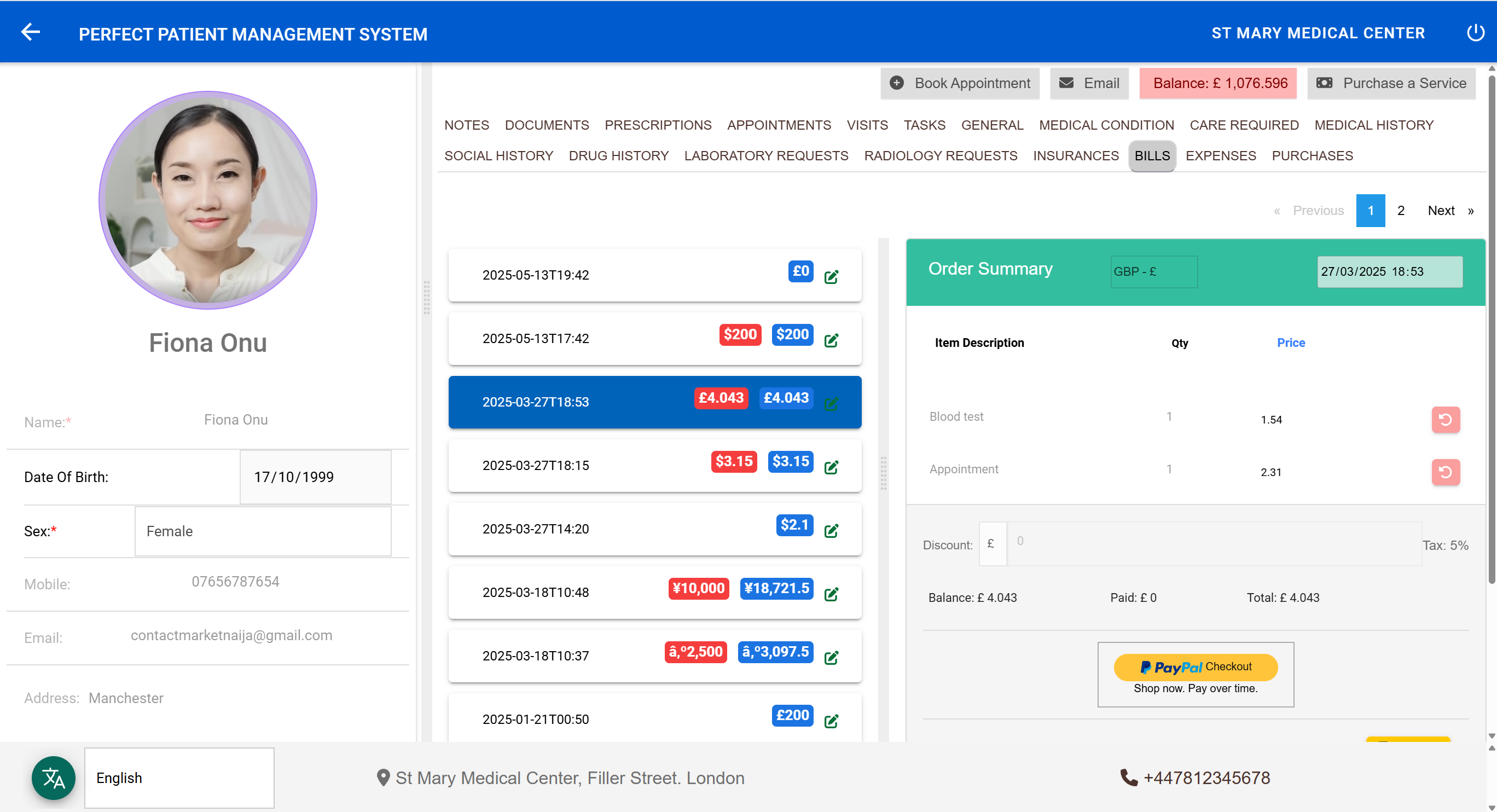
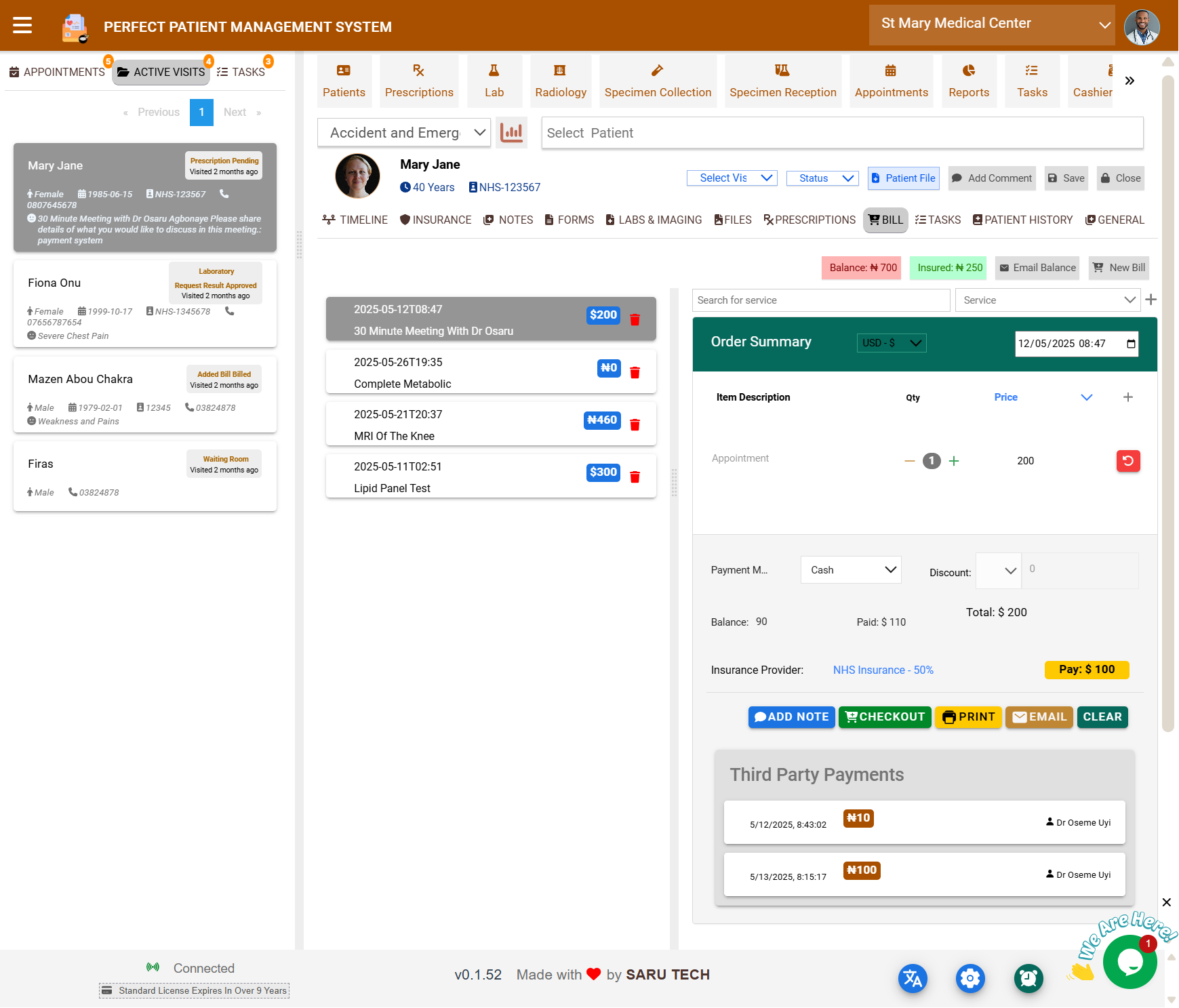
🧾 Billing Tab
This tab tracks all financial charges for the visit.
🔧 Key Features
- Balance Display : Shows the outstanding amount and any portion covered by insurance
- Add New Bill : Manually enter billable services or items (e.g., Consultation, Test, Medication)
- Automatic Charges : Lab, imaging, or prescription actions can auto-generate bills
- Email Balance : Sends a summary to the patient (if email is on file)
Each bill record includes item name, price, insurance coverage, and net balance.
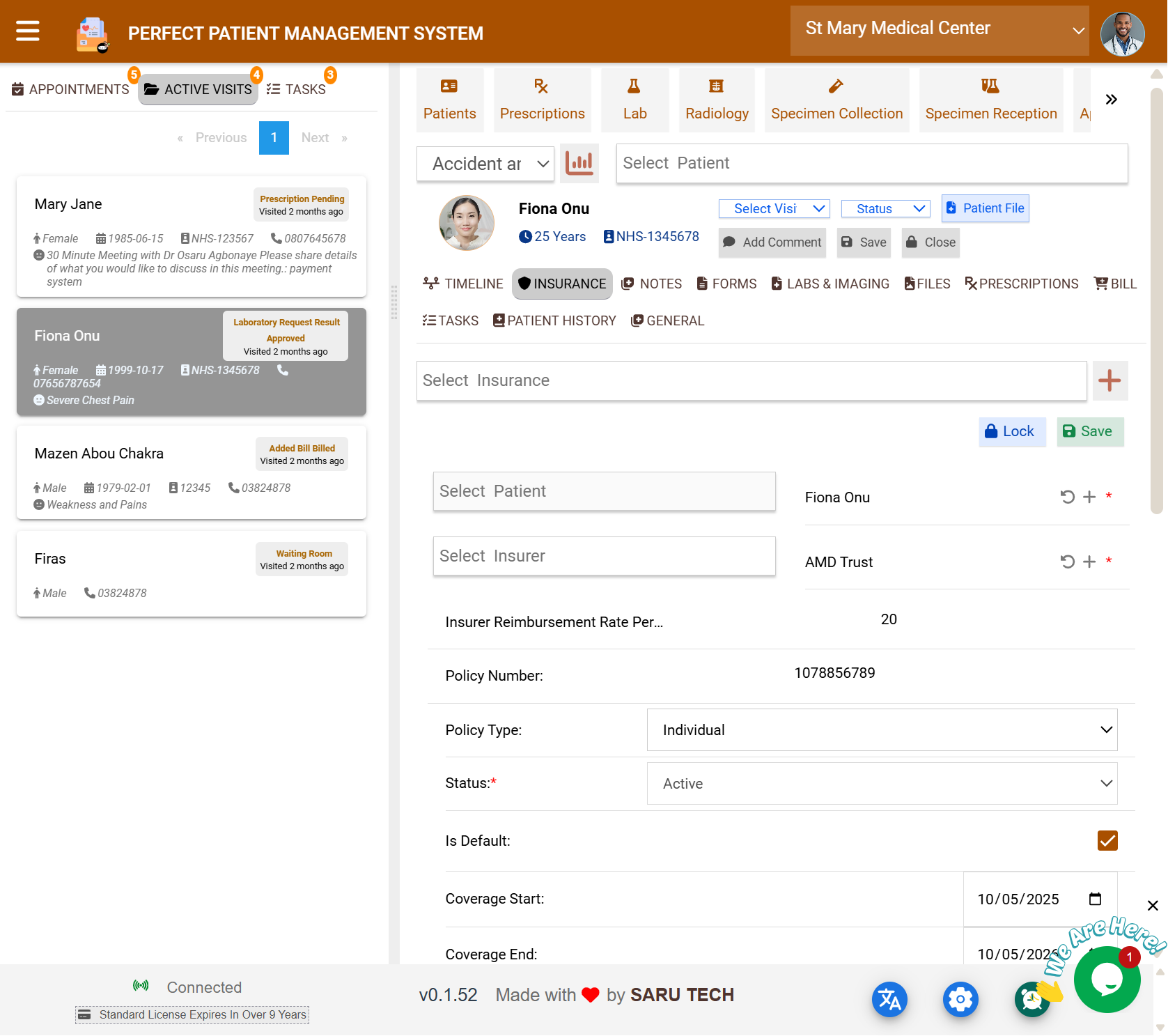
💳 Insurance Tab
This tab lets you assign and manage insurance coverage for a visit.
🔍 Features
- Add or select an insurance policy from the patient’s record
- Set coverage percentages and authorization flags
- Upload documents like insurance cards or approval letters
- Link insurance to specific bill items
✅ Every insurance action is recorded in the visit’s timeline.
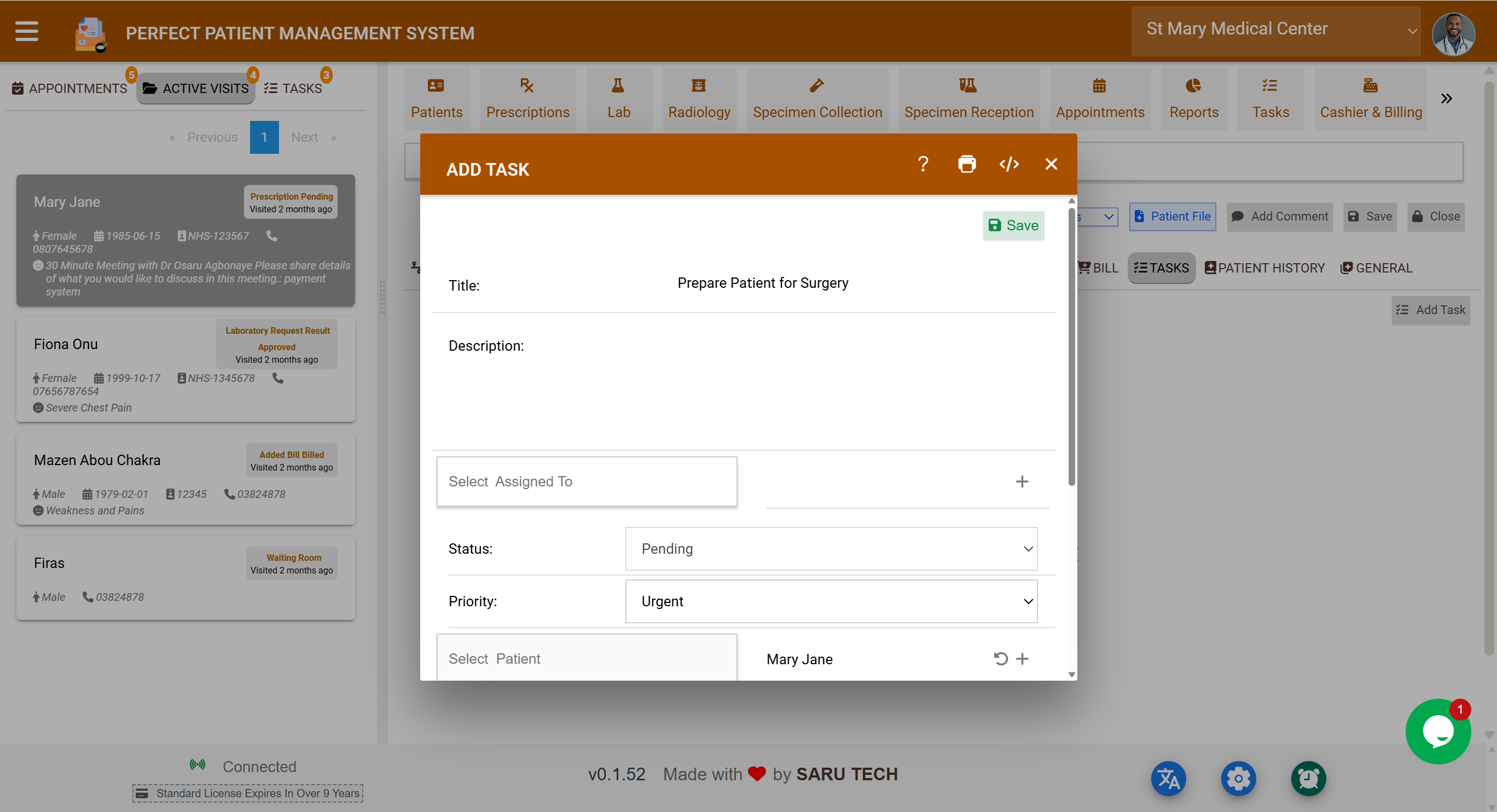
📌 Tasks Tab
Tasks allow staff to manage clinical or administrative follow-ups related to the visit.
➕ Creating a Task
To create a new task, provide:
- Title
- Description
- Due Date
- Assigned To (staff member)
- Priority (Urgent, High, Medium, Low)
- Status (Pending, In Progress, Completed)
✅ Tasks are color-coded by priority and include visual status indicators.
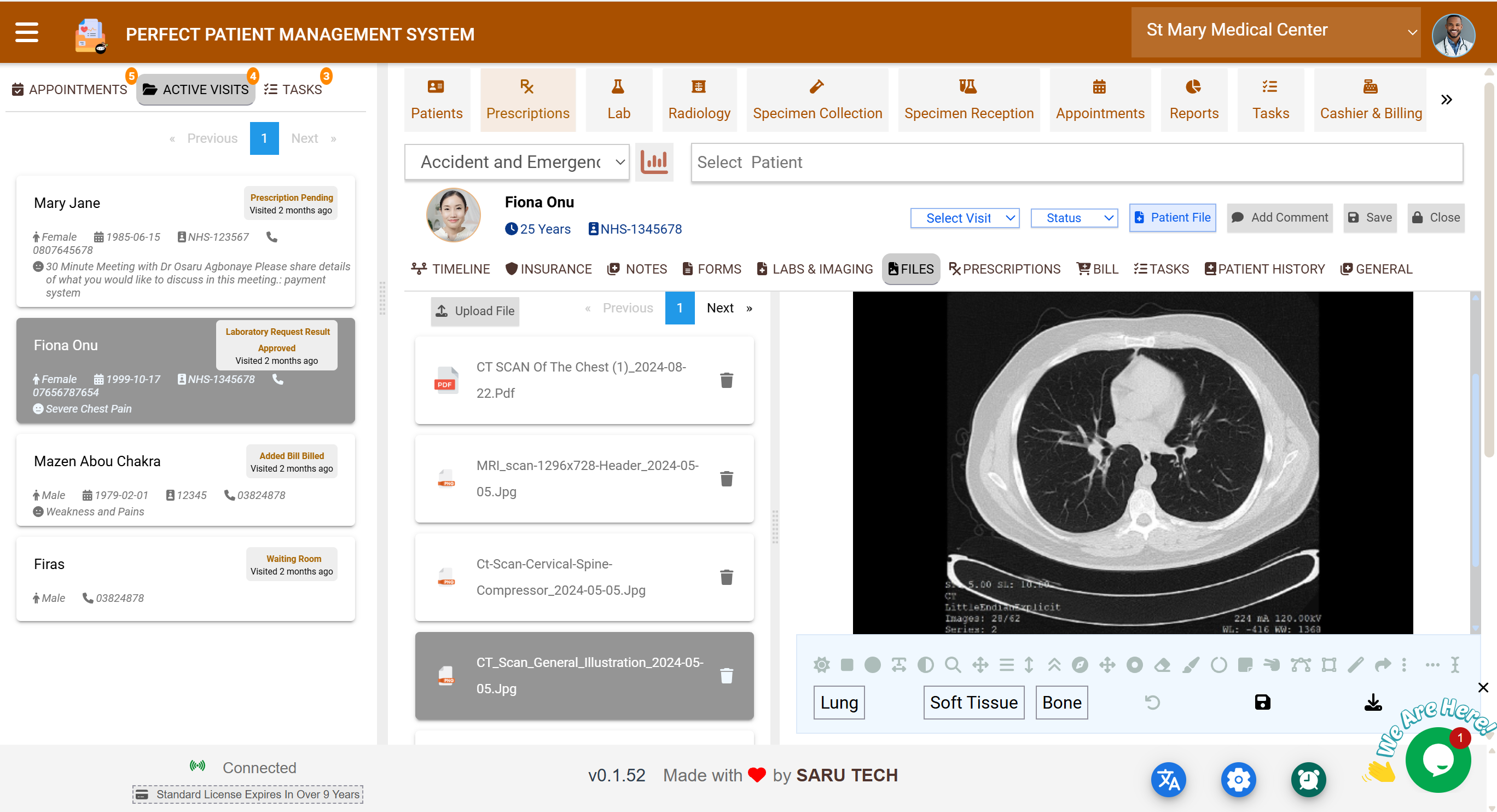
📁 Files Tab
The Files tab acts as the document repository for the current visit.
You can upload:
- PDFs
- Lab reports
- Radiology images
- Consent forms
- Scanned handwritten notes
📥 Each file is stored against the visit and logged in the Timeline with details of who uploaded it.
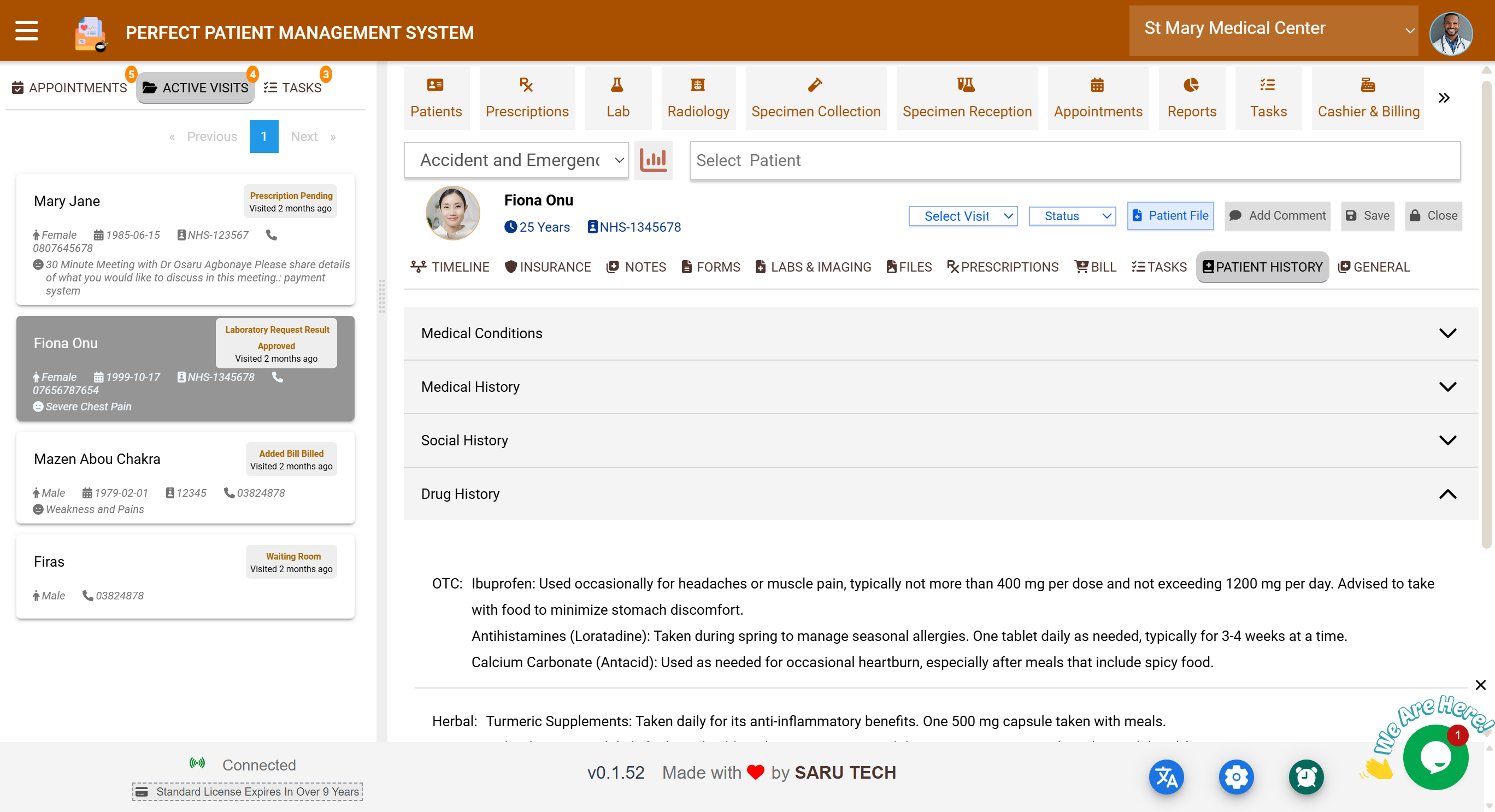
📚 Patient History Tab
This tab provides a consolidated view of a patient’s long-term medical record.
Includes:
- Medical History : Past surgeries, chronic illnesses, allergies
- Medical Conditions : Chronic diseases (e.g., asthma, diabetes)
- Social History : Alcohol use, smoking, exercise habits
- Drug History : OTC medications, herbal treatments, previous prescriptions
💡 Ideal for reviewing long-term patterns and preparing for major treatment decisions.
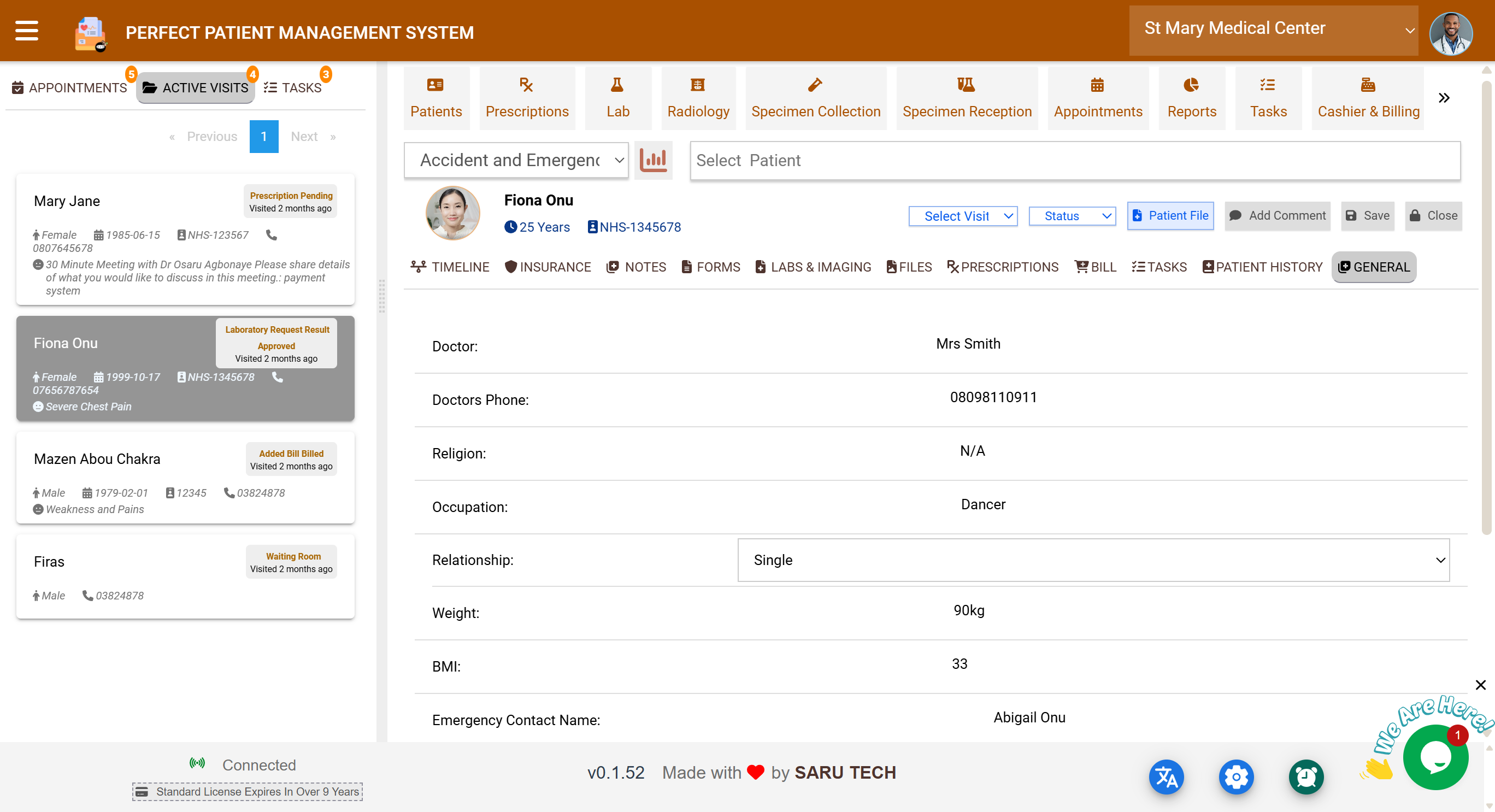
⚙️ General Tab
The General tab allows you to update patient demographics or background information during the visit.
Editable fields include:
- Full Name
- Date of Birth
- Sex
- Nationality
- Phone, Email, Address
- Next of Kin
- Notes or flags
🛡 Changes affect the patient’s master record and are time-stamped in the Timeline.
🔒 Closing a Visit
Once care is complete, click “Close Visit” or “Lock” from the visit header bar.
This will:
- Prevent further editing
- Freeze prescriptions, billing, and notes
- Mark the visit as completed
🔐 Only authorized staff (e.g., admins or supervisors) can unlock a visit if changes are later required.
✅ Checklist Before Closing
- Finalize and approve lab or radiology reports
- Issue prescriptions and dispense if needed
- Apply and confirm insurance coverage
- Add all charges and receive payments
- Resolve tasks or delegate them for follow-up
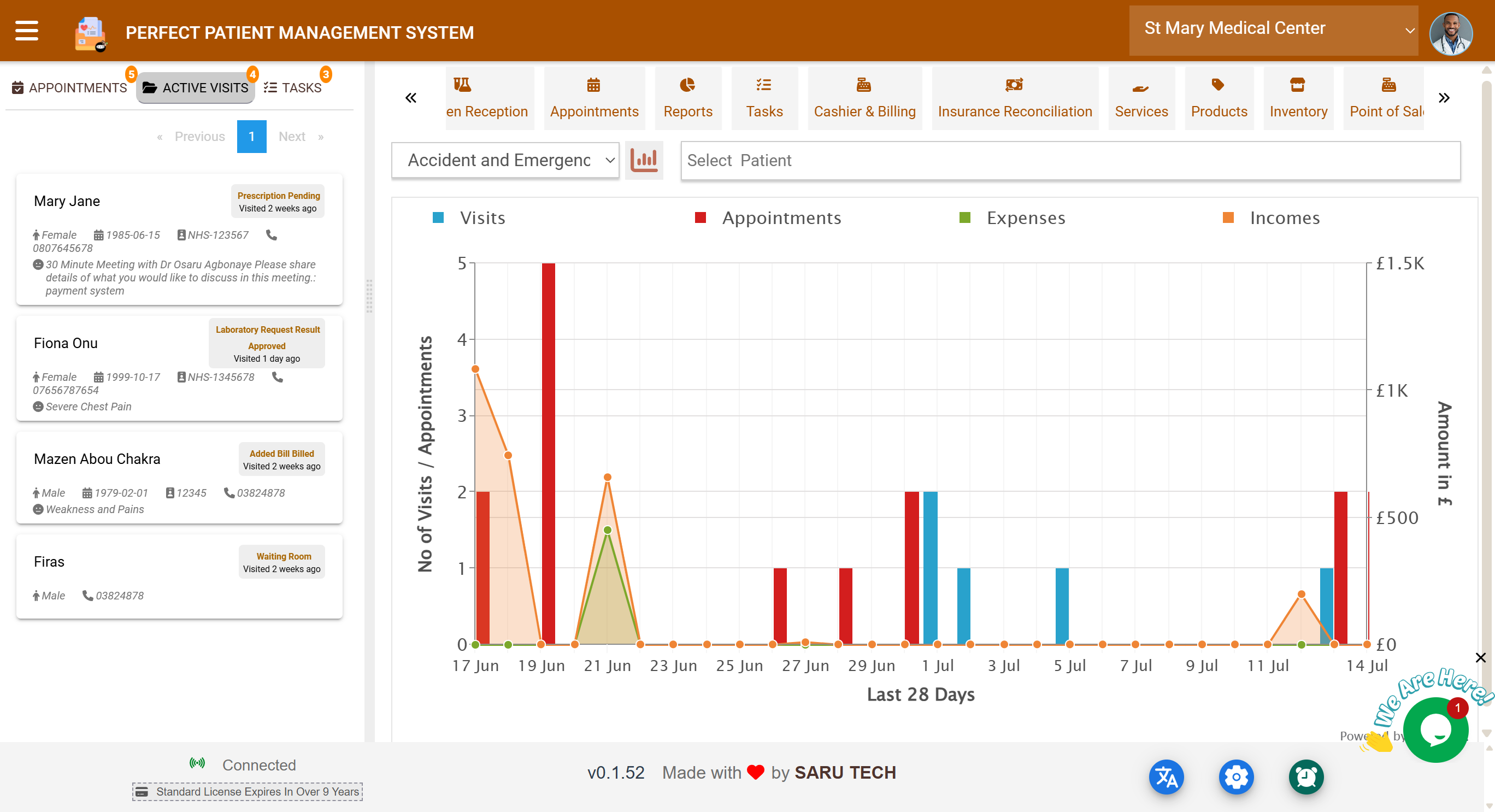
📊 Global Dashboard Toggle
Within the Patient Management page, there is a Chart button/icon located in the top toolbar. This allows users to toggle the view between:
1️⃣ Main View (Default)
- Left side: Tabs for Appointments , Active Visits , and Tasks
- Right side: The selected patient’s visit file
2️⃣ Visits Dashboard and Charts
- Replaces the patient workspace with department-wide statistics
- Visual summaries include new visits, appointment trends, lab tests, billing summaries, and staff activity
🔄 Switch between views at any time without losing your place in the patient file.
🔁 Toggling Between Departments
If your facility runs multiple departments or units, users can toggle between them using a department switcher in the toolbar or sidebar.
✅ Helps staff see only relevant workload and coordinate patient flow across services.
💬 Visit Comments & Notes Tracking
During any visit, staff can click the comment icon in the top toolbar to:
- Add short remarks
- Record observations or admin notes
- Tag staff members
These comments appear immediately in the Timeline with timestamps and author details.
✍️ Notes with Change Tracking
The Notes tab saves every version with full change history:
- What changed, when, and by whom
- Attachments logged per version
🧠 Essential for accountability, shift handovers, and legal documentation.