
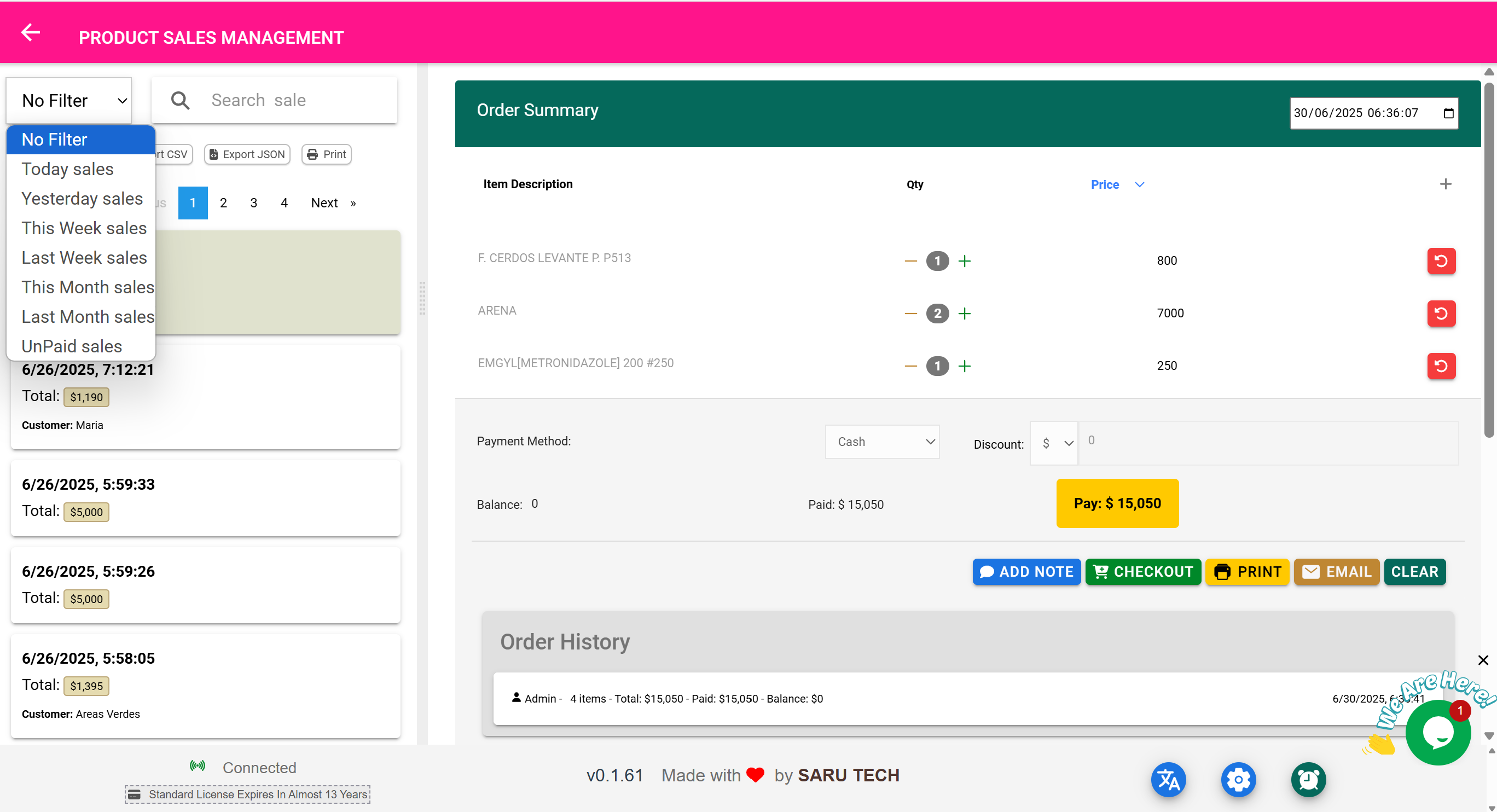
📄 Invoices & Quotations Page
“Send professional quotations. Convert them to invoices. Track payments. All from one place.”
🎯 Purpose of This Page
The Invoices & Quotations Page is your central tool for:
- Creating and sending formal quotations before a sale
- Converting accepted quotations to invoices or sales
- Tracking unpaid invoices and follow-ups
- Printing or emailing branded PDF documents
- Managing both product and service-based billing workflows
This is ideal for businesses that need to:
- Share price breakdowns before transactions
- Get approval before dispensing or selling
- Allow customers to pay from a formal invoice
🧩 How Quotations Work
A quotation is an official offer sent to a customer, detailing:
- What products or services you will provide
- At what price
- With taxes, discounts, and expiry date
✅ Once the customer accepts it, you convert it into a bill or sale, avoiding double entry.
🛠️ Features of the Page
| Feature | What It Does |
|---|---|
| ➕ New Quotation | Create a fresh quotation for any customer |
| 🔄 Convert to Invoice/Sale | Turn an accepted quote into a real bill or POS sale |
| 📤 Send by Email | Email a branded PDF quotation or invoice to the customer |
| Generate physical copies with your business branding | |
| 🔍 Search/Filter by Status | Quickly find Draft, Approved, or Expired quotes |
| 📅 Filter by Date | Review past quotes by week, month, or custom range |
| 🧾 Track Payments | See if a quotation-led invoice has been paid or still owed |
| 🧠 Auto-Fill from Customer | Selecting a customer pulls in all their default info and billing terms |
🧰 Example Workflow: Quoting a Corporate Order
- A school wants a quote for 200 boxes of surgical gloves before committing.
- Open Invoices & Quotations Page
- Click New Quotation
- Select the customer: “Greenfield High School”
- Add products:
- Surgical Gloves (200 boxes at $5 each)
- Add:
- Tax: 5%
- Validity: 14 days
- Note: “Payment due upon delivery”
- Click Save as Quotation
- Click Email → Send PDF to their purchasing manager
📋 Quotation Statuses
| Status | Meaning |
|---|---|
| Draft | Still being edited — not sent yet |
| Sent | Delivered to customer (via print or email) |
| Approved | Customer has accepted it; ready for billing |
| Expired | Past its expiry date — you can revise or resend |
🔄 Convert to Invoice / Sale
Once a customer accepts a quotation:
- Open the quotation
- Click Convert to Invoice
- You can now:
- Collect payment
- Dispense items
- Trigger delivery
- Reconcile income
✅ This saves time — you don’t have to rebuild the bill.
📤 Email and Print
Email a professional PDF with:
- Your company name/logo
- Full price breakdown
- Notes, terms, and bank/payment details
✅ Print and send by courier or attach to a delivery. Quotations and invoices follow the same layout — adjusted by status.
🧾 Example Use Case: Invoicing for a Service
- A customer requests a dental cleaning. You want to give them a cost before the appointment.
- Go to this page
- Click New Quotation
- Select the customer and service: “Dental Cleaning – $80”
- Save and print the quote
- Once they confirm, convert it to an invoice
- Accept payment via POS or log it as a service bill
📦 Inventory-Aware Quoting
✅ When quoting physical items, the system checks current stock.
- You cannot quote more than what’s available (unless override is enabled)
- This ensures sales are realistic and fulfillable
📈 Filtering, Exporting, and Reports
- Use status filters to find all unconverted quotations
- Export accepted quotes to compare sales pipeline vs actuals
- Print monthly quotation logs for compliance or management
🧠 Best Practices
- Use clear item names and tax breakdowns
- Set quote expiry dates to create urgency
- Always convert accepted quotes into actual bills
- Add notes like “Delivery within 3 days” or “50% advance payment required”