
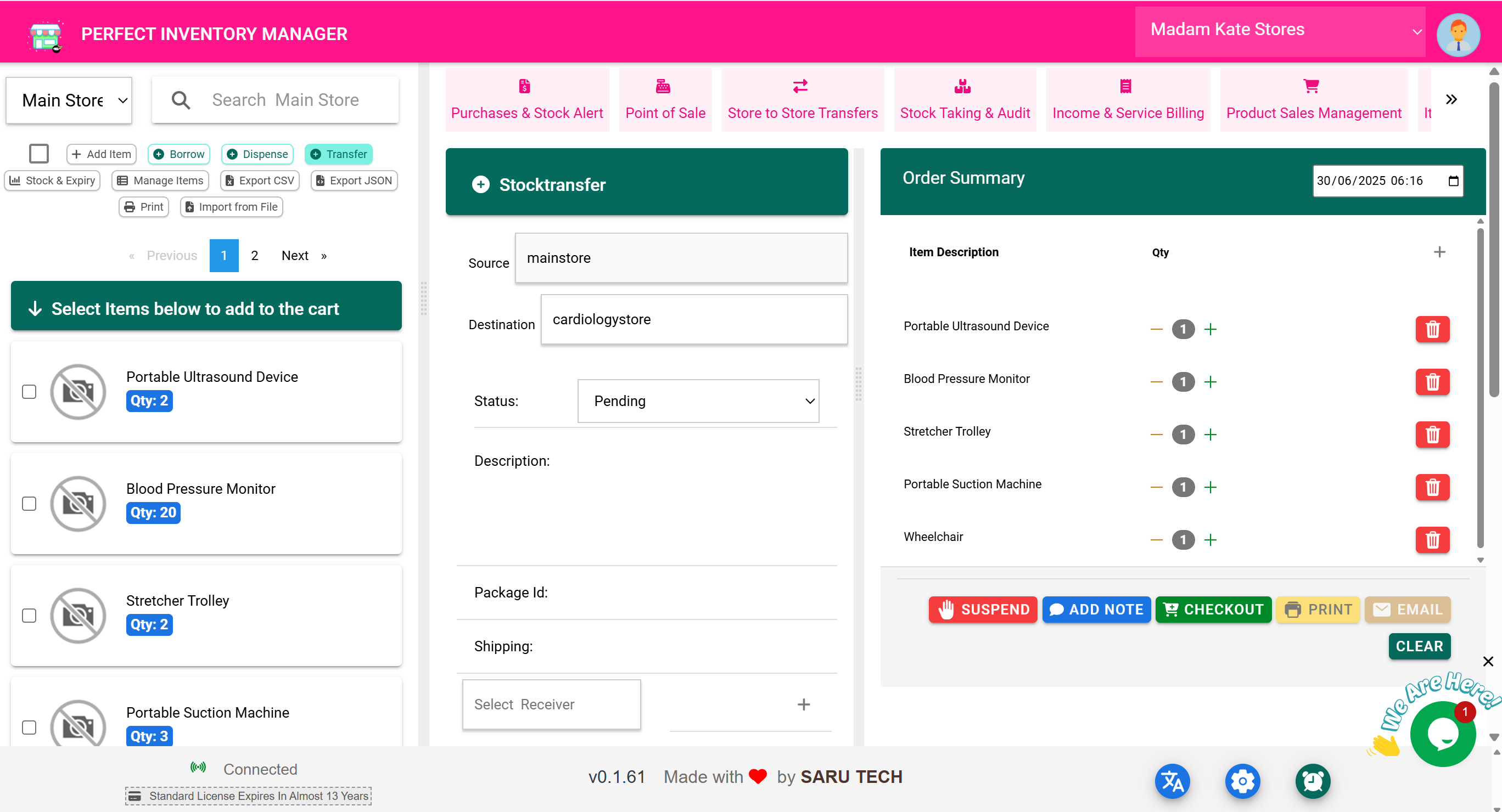
The Transfers Page provides a historical view of all stock movements between stores or departments. It ensures traceability for internal logistics and is a critical tool for inventory officers and auditors.
⚠️ Important Reminder
This page is not for initiating transfers .
All transfers must be created from the Inventory Page using the Transfer Action . The Transfers Page is strictly for:
- 📜 Reviewing and tracking previous transfers
- ✅ Monitoring delivery statuses (Pending, Shipped, Received)
- 📤 Exporting transfer logs for reporting
- 🖨️ Printing transfer summaries for compliance
🎯 What Does This Page Show?
- All stock transfers between stores
- Source and destination store details
- Quantities and items transferred
- Status of each transfer (Pending, Shipped, Received)
🔍 Filters and Search Options
The dropdown filter provides tools to focus your review. Options include:
- Item Filter (Default): View transfers involving a specific product. Selecting this activates an autocomplete search box. The list and charts update to show transfers for that product only.
- Customer Filter: Narrow results to transfers initiated by or associated with a specific user or department.
- Status Filter: Focus on Pending, Shipped, or Received transfers.
- Date Filter: Restrict results to Today, This Week, Last Month, or custom ranges.
✅ The live summary chart reflects the current filters.
📊 Summary Charts
The dashboard provides insights into transfer activity:
- Total Transfers: Number of transfer transactions in the selected range
- Total Items Moved: Quantity of products transferred
- Pending Transfers: Transfers awaiting confirmation
- Completed Transfers: Successfully received and reconciled
Filters update the chart to focus on specific items, departments, or time frames.
📜 Transfer Record Details
Clicking a record opens detailed information:
- Source and destination store
- Item names, quantities, and transfer date
- Status and notes on the transfer
Available Actions:
- 📤 Export Record: Download transfer details for reports
- 🖨️ Print Transfer Summary: For delivery or audit purposes
- ✅ Mark as Received: Update status once delivery is confirmed (admin only)
🧰 Real-Life Workflow: Verifying Store Delivery
- Filter by Item and search for “IV Fluids”
- Open the transfer from Main Store to Surgical Store
- Confirm delivery and mark as Received
- Print the transfer summary for store records
✅ Stock levels update for both stores, and the transfer is closed.
📤 Export and Reporting
- Export CSV / JSON: Share filtered transfer data with compliance teams
- Print Summary: Create handover sheets for physical tracking
🧠 Best Practices
- Use Item Filter to monitor high-value stock movements
- Mark transfers as Received immediately upon delivery confirmation
- Export weekly transfer logs to reconcile with physical audits
- Encourage staff to add notes for each transfer to improve traceability