
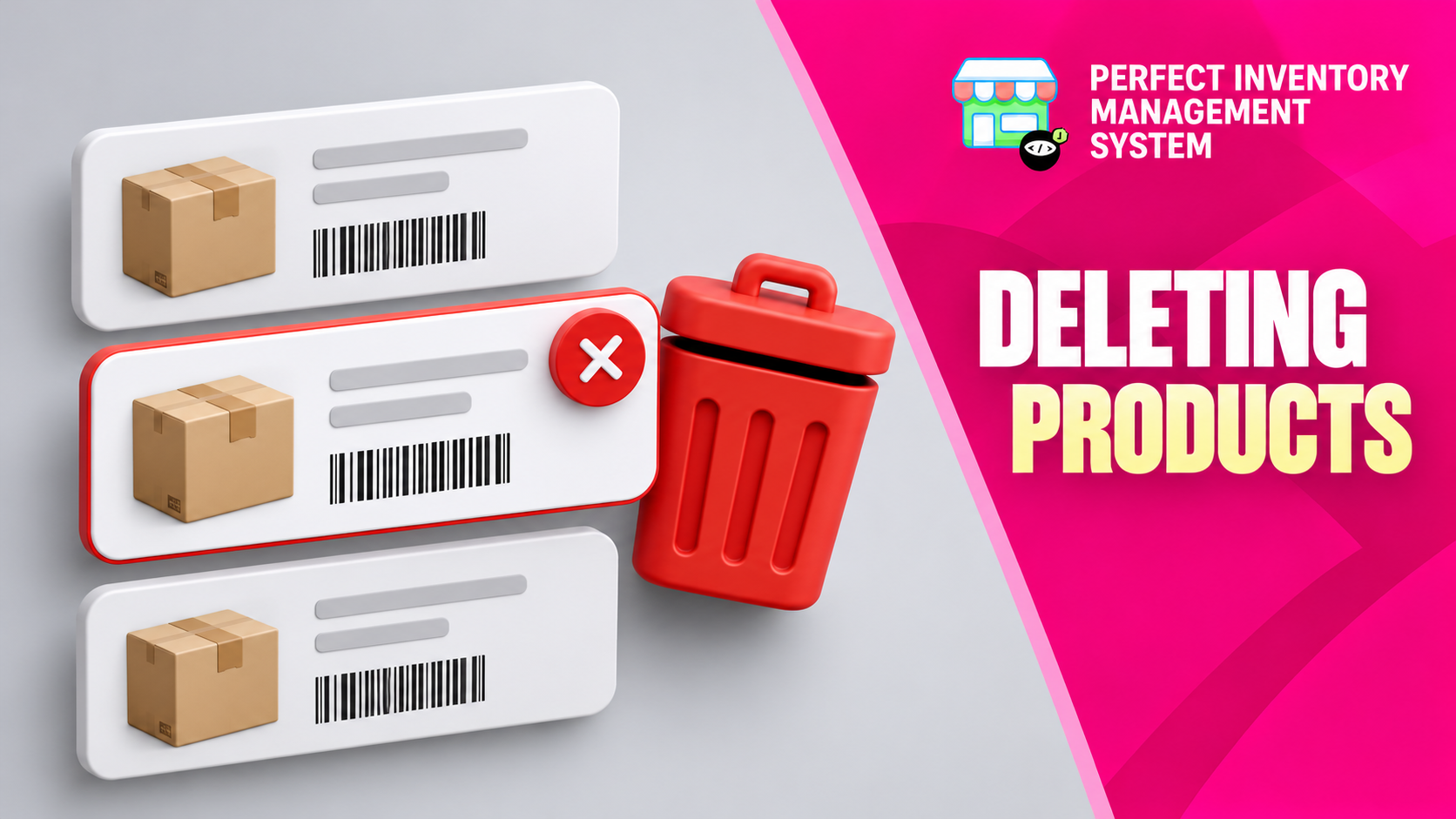
Remove unwanted products from the active inventory catalog using the controlled deletion workflow. Review the selected records carefully and understand how deletion differs from recording a stock movement.
Remove a catalog entry for the right reason
Deleting Products is an administrative action. The workflow removes selected products from active inventory and places them in the recycle bin, while historical sales and purchase records are retained. This supports recovery and preserves earlier transaction context. Deletion is not the appropriate way to explain damaged stock, ordinary sales or a physical count discrepancy.
Step by step
Review the product first
Confirm the store, product identity and reason for removal. Check for remaining stock or unresolved activity that needs attention through its normal workflow.
Select the intended records
Use the inventory checkboxes to choose the products. Review the selection rather than relying only on a filter or similar product names.
Use Delete Selected
Choose the deletion action with an authorised account and read the confirmation before completing it.
Verify the result
Confirm the products no longer appear in active inventory. Review the recycle bin when recovery is needed and use historical records to inspect earlier sales or purchases.
Use stock workflows to describe what happened to physical goods. Deleting a product should not be used to conceal an unexplained stock difference.
Choose deletion only for a catalog decision
A product list can be printed for counting or review through Reporting and Inventory Data Export. Deletion serves a different purpose: removing an item from the active catalog after its identity, stock and transaction history have been checked.
If the problem is an incorrect product name or image, edit its details. If stock is damaged or missing, use a recorded movement or verified adjustment. For a genuinely unused duplicate, an authorised administrator can select that record, confirm deletion and recover it from the recycle bin if needed.
- Check the selected checkboxes immediately before confirming, especially when similarly named products appear together.
Before you move on
- Check selected products and remaining stock.
- Use an account with the appropriate permission.
- Confirm removal and retain access to relevant history.
Put the workflow into practice
Explore Perfect Inventory Management System and use these guides alongside your team’s daily work.
Open InventoryExplore the product