
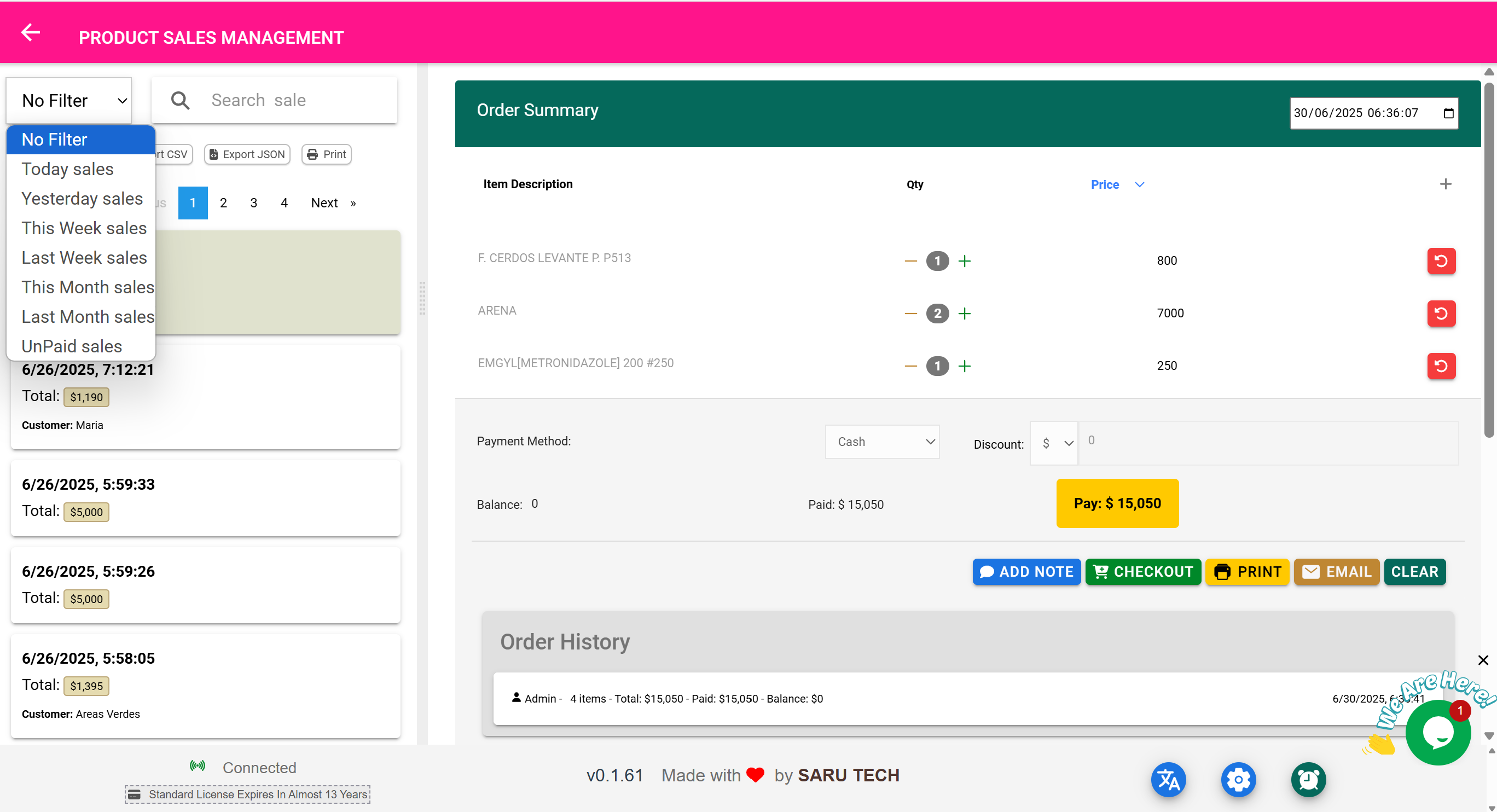
🛒 Product Sales Management Page
“Track and manage all sales of physical products — accurately and efficiently.”
⚠️ Important Clarification
The Product Sales Management Page is a management and reporting page only .
You do not create new sales here. All actual product sales must be made from the Point of Sale (POS) Page . This page is strictly for reviewing, analyzing, exporting, printing, and following up on past sales.
🧾 What Is Tracked as a Product Sale?
- Medicines sold to walk-in patients
- Over-the-counter retail product purchases
- Any item from your inventory that was sold via POS
- Partial or unpaid sales (e.g., part paid by insurance)
- Cash, card, or third-party payment sales
🔍 Filters and Search Options
The dropdown filter allows you to refine your view for efficient reporting:
- Item Filter (Default): Focus on sales records for a specific product. Selecting this activates an autocomplete search box, and the summary recalculates to show only activity for that product.
- Customer Filter: View sales linked to a specific patient or customer. Helpful for tracking balances or purchases made by frequent buyers.
- Date Filter: Limit results to Today, This Week, Last Month, or custom date ranges.
- Status Filter: Show only Paid, Unpaid, or Partially Paid records.
✅ The Summary Inventory Panel dynamically updates based on the active filters.
🧭 What Can You Do On This Page?
| Feature | Description |
|---|---|
| 🔍 Search Bar | Search by customer name, product, or description |
| 📅 Date Filters | Filter sales by day, week, or month |
| 🧾 Balance Indicator | Instantly see paid vs unpaid sales |
| 👤 Customer Summary | Track which customers owe money or have completed payments |
| 🖨️ Print Bills | Print or reprint past sale receipts |
| 📤 Export CSV/JSON | Export for accounting, analysis, or external reports |
| 📄 Open Bill View | See the full transaction including items, quantity, price, and payments |
📊 Summary Inventory Panel for Sales
Just like with the Income page, a summary dashboard appears when no bill is selected. In sale mode, it shows:
| Metric | Meaning |
|---|---|
| Number of Sales | Total number of transactions within the filter range |
| Total Amount Sold | Total value of products sold |
| Total Paid | How much cash or card was collected |
| Outstanding Balances | Unpaid or partially paid amounts (e.g., insurance or pending payments) |
🧰 Example Use Case: Weekly Sales Overview
- Filter by: “This Week”
- View total sales: $9,500
- Paid: $7,600
- Balance: $1,900
- Click a specific unpaid sale to open the full detail
🔁 Handling Returns, Barcode Scanning, and Detailed Bill Actions
📦 1. Returning a Previous Sale
When you open a specific sale record, the embedded page-bill component allows you to initiate returns — either partially or fully.
✅ What You Can Do:
- Select individual items from the original sale
- Click Return for each
- Enter quantity being returned
- System updates inventory automatically
- Return appears in Timeline and Refunds section
🧰 Example Workflow:
- A patient bought 10 face masks but returns 4 because they were the wrong type.
- Open the Product Sales Management Page
- Search and click the relevant sale
- In the bill component, click Return on the “Face Mask” line
- Enter quantity: 4
- Confirm return
- Inventory is adjusted (+4 units)
- The return is logged under Refunds
📷 4. Barcode Scanning to Recall a Sale
If you have a receipt with a barcode:
- Scan it directly in the Product Sales Management Page
- The original sale loads instantly
- You can view all details, process returns, or reprint/email the receipt
✅ Perfect for high-volume pharmacies or retail environments.
🧠 Best Practices
- Always use the return button in the bill view — avoid manual stock edits
- Use barcode scanning to speed up lookups and avoid errors
- Run unpaid filters weekly for proactive billing follow-up
- Add comments in the Timeline for transparency during audits