
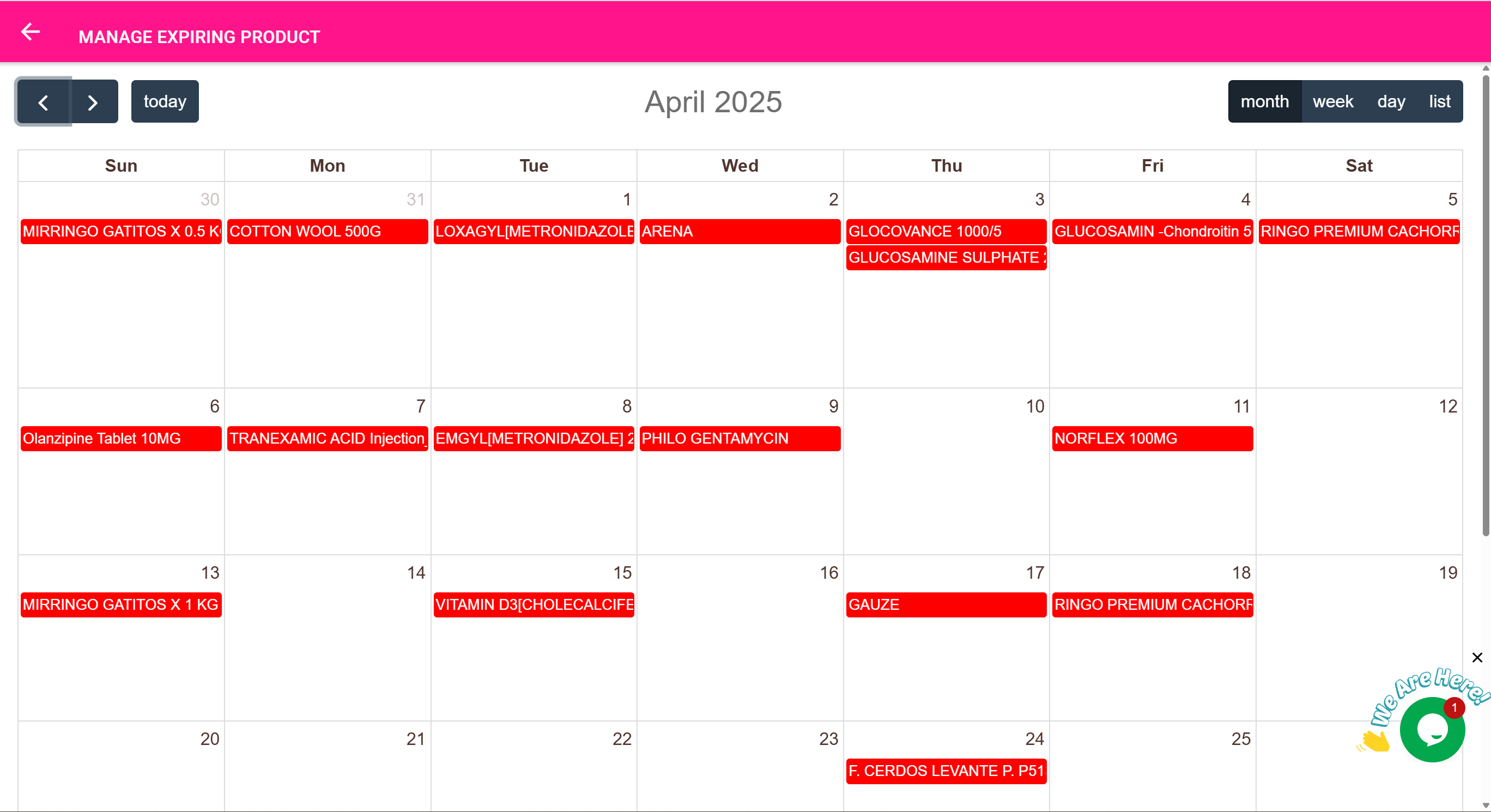
⏳ Expiring Products Page
“Stay ahead of expiry — identify at-risk items and prevent waste.”
🎯 Purpose of This Page
The Expiring Products Page helps you monitor products that are approaching or have passed their expiry date.
This page allows you to:
- See all expiring products across stores
- Track how soon each product will expire
- Take proactive action: reorder, rotate stock, or dispose
- Quickly navigate to each product’s detail view for decisions
🧠 Who Should Use This Page?
- Pharmacy managers tracking medication expiry
- Store officers responsible for consumables
- Inventory supervisors preparing for monthly audits
- Procurement staff deciding what to reorder or dispose
📅 How Expiry is Calculated
Each product has an expiry date field. The system:
- Calculates the time remaining before expiry
- Flags products nearing expiry based on system-wide expiry threshold (e.g., 30 days)
- Sorts and displays products with the soonest expiry at the top
✅ The logic behind these alerts is automatically enforced — no need for manual filtering.
🔍 What You Can Do on This Page
| Feature | Description |
|---|---|
| 🔎 Search Bar | Find products by name |
| 📦 List of At-Risk Items | View products nearing or past expiry |
| 📤 Export Button | Export the list to CSV/JSON for audits or suppliers |
| 🖨️ Print Button | Print physical lists for disposal or review |
| 📅 Expiry Countdown | See how many days remain until expiry (or how long it’s been expired) |
| 📦 Click-to-Open | Tap a product to open its full profile in the Inventory Page |
🧰 Example Workflow: Disposal Planning
- The Pharmacy Officer runs a weekly check to prepare a disposal form for expired stock.
- Open Expiring Products Page
- Review products marked as expired (in red)
- Click Print to generate a paper copy
- Hand it to the disposal committee or supervisor
- Go to the Inventory Page → locate product → adjust quantity or add comment
🧾 Example Workflow: Stock Rotation
- You see a product expiring in 10 days but still have 50 units in the Main Store.
- Open the product record via click-to-open
- From the Inventory Page, choose Transfer
- Send some quantity to a fast-moving department (e.g., Emergency Ward)
- Add a note: “Fast-moving transfer due to expiry”
✅ This helps maximize product usage and minimize loss.
⛔ Use Case: Preventing Unintentional Dispense
- When a product is expired:
- It still appears in the product list, but you can add a warning in its profile (e.g., via Comments)
- You can adjust quantity to 0 or mark it as disposed
- You can use Stock Taking or Purchase Audit to handle expired products in bulk
📤 Export for Reporting
For auditing or compliance:
- Click Export CSV to generate a list of all at-risk or expired items
✅ Useful for:
- Hospital compliance reports
- Quarterly pharmacy audits
- Supplier return requests
🧠 Best Practices
- Check this page at least once per week
- Train staff to use the expiry badge colors to prioritize:
- Red = expired
- Orange = near expiry
- Green = safe
- Use system settings to define expiry thresholds (e.g., warn 60 days before expiry)
- Tie this page into your purchasing and transfer planning