
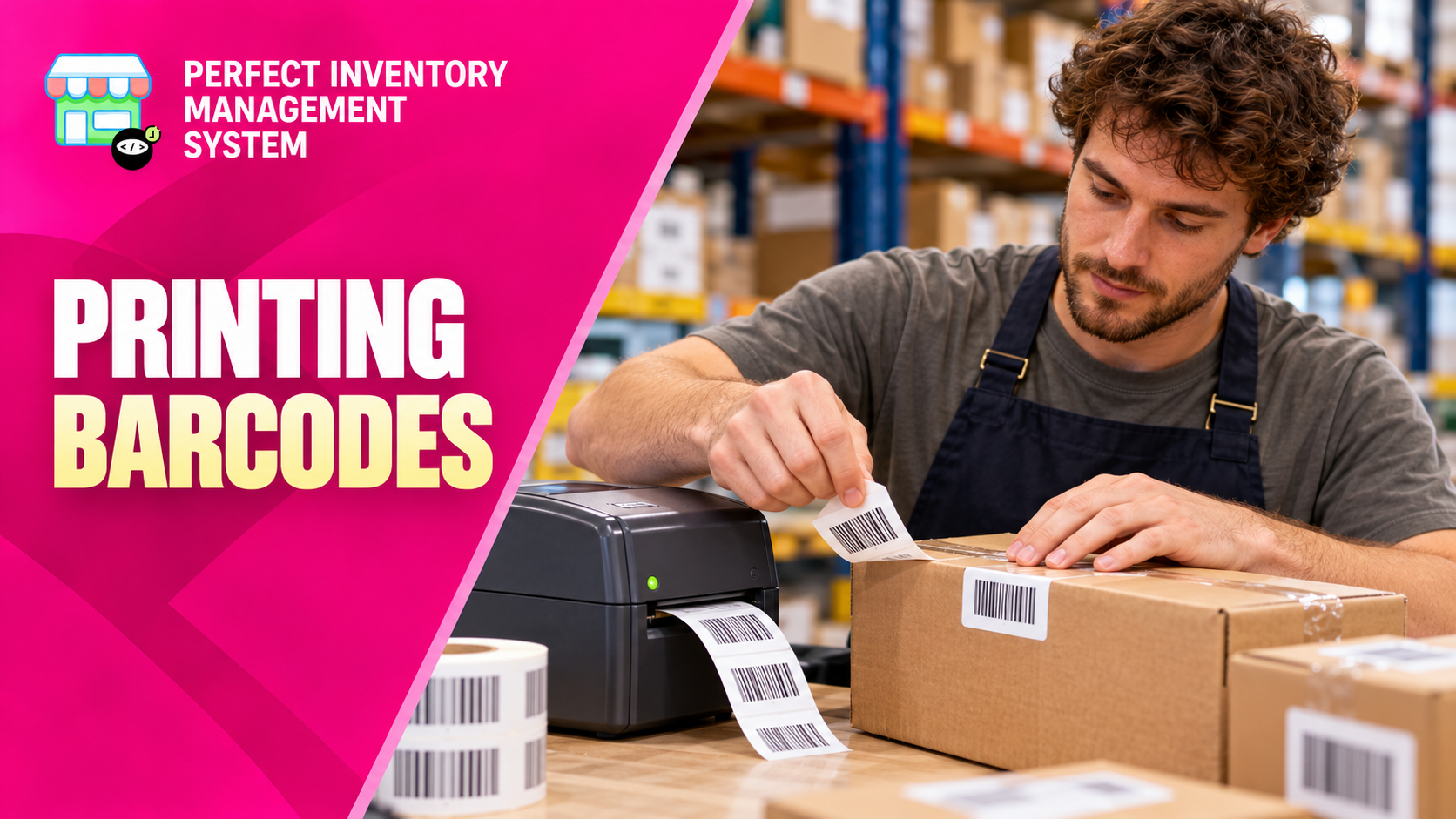
Generate product barcode labels to make items easier to identify during scanning workflows. A readable label links the physical product to the inventory record staff need to use.
Check the record before printing the label
Barcode printing starts from the product’s barcode action. The label is useful only if the product record and its code identify the intended item. Review the name, size or variant before printing, then check the physical result with the scanner used by your team. A product barcode helps identify an item; it should not be assumed to contain purchase-batch or expiry information.
Step by step
Open the product
Find the item and confirm its barcode and identifying details. Make sure the code belongs to this product rather than a similar variant.
Choose Print Barcode
Use the barcode printing action to generate the printable label output.
Review and print
Inspect the output and print a small sample using your available print setup. Keep the barcode clear and avoid clipping it at the edge of the label.
Attach and scan a sample
Place the label where staff can scan it, then verify that a scan finds the intended product before labelling the remaining stock.
Check a sample before printing a large run. A label can look readable to a person while being difficult for a scanner to recognise.
Before you move on
- Confirm the correct product and barcode.
- Check label clarity and placement.
- Test scanning with the device staff will actually use.
Watch the matching video lesson
Open the short lesson on YouTube. If it is unavailable, watch this section in the full tutorial.
Put the workflow into practice
Explore Perfect Inventory Management System and use these guides alongside your team’s daily work.
Open InventoryExplore the product