
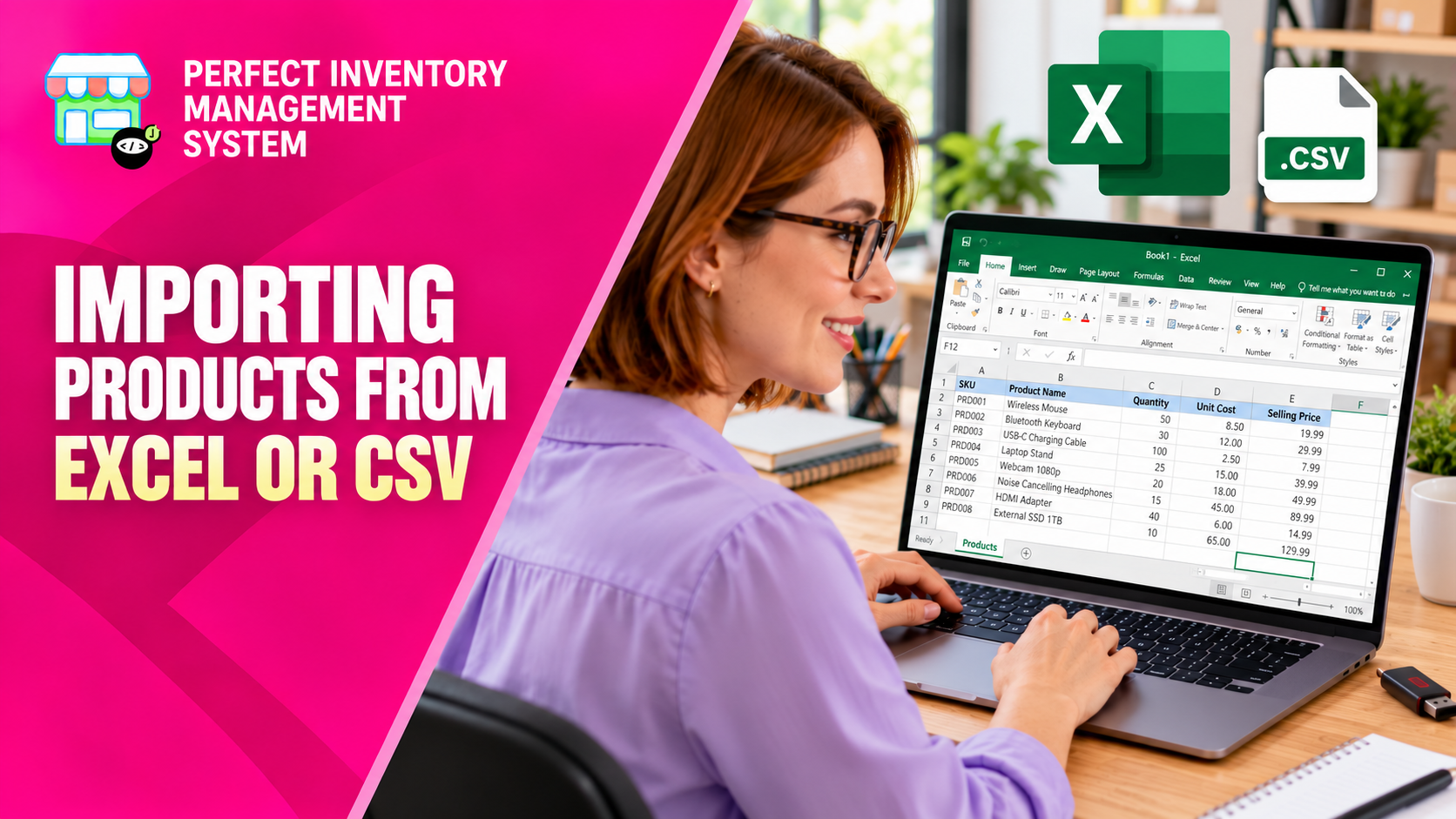
Move an existing product list into Perfect Inventory Management System using an Excel or CSV file. A prepared import is a practical way to establish a catalog without entering every item individually.
Start with the system’s template
Download the import template from the inventory import action and keep its column structure. The template shows the fields expected by the importer, including product names, barcodes, prices and quantities. Clean the source spreadsheet before uploading it: consistent names, units and numeric values make validation easier. Keep a copy of your original file so you can compare the imported records with the source.
Step by step
Download the template
Open Import from Excel and download the available template. Use the current template rather than inventing column names.
Prepare the product rows
Copy your catalog into the corresponding columns. Review cost price, selling price and quantity. Preserve barcode digits, including leading zeros, by treating barcode cells as text.
Upload and resolve validation errors
Choose the prepared Excel or CSV file. Read any validation messages, correct the affected rows and resubmit as required.
Check the imported catalog
Inspect a sample of products in the intended store. Compare names, prices, units and quantities against the source file before staff begin transactions.
Resolve validation errors before relying on the imported stock. If a result is unclear, inspect the catalog before retrying the same file so you do not accidentally introduce duplicates.
Import and export serve different purposes
An import establishes or updates product information from a prepared file. An export makes a copy of the inventory for analysis or reference; changing that exported file does not change stock. If you are moving data from an older spreadsheet, clean the names, units and barcodes before using the system template.
After import, search for a few representative products: one with a leading-zero barcode, one with a decimal price and one with a subunit or category. Compare them with the source sheet. For a later spreadsheet copy, use Reporting and Inventory Data Export.
- Keep the original spreadsheet until the imported sample is checked.
- Use the downloaded template's actual column names and expected formats.
Before you move on
- Keep the downloaded column layout.
- Check leading zeros, decimal values and unit consistency.
- Verify a sample of saved products after import.
Put the workflow into practice
Explore Perfect Inventory Management System and use these guides alongside your team’s daily work.
Open InventoryExplore the product