
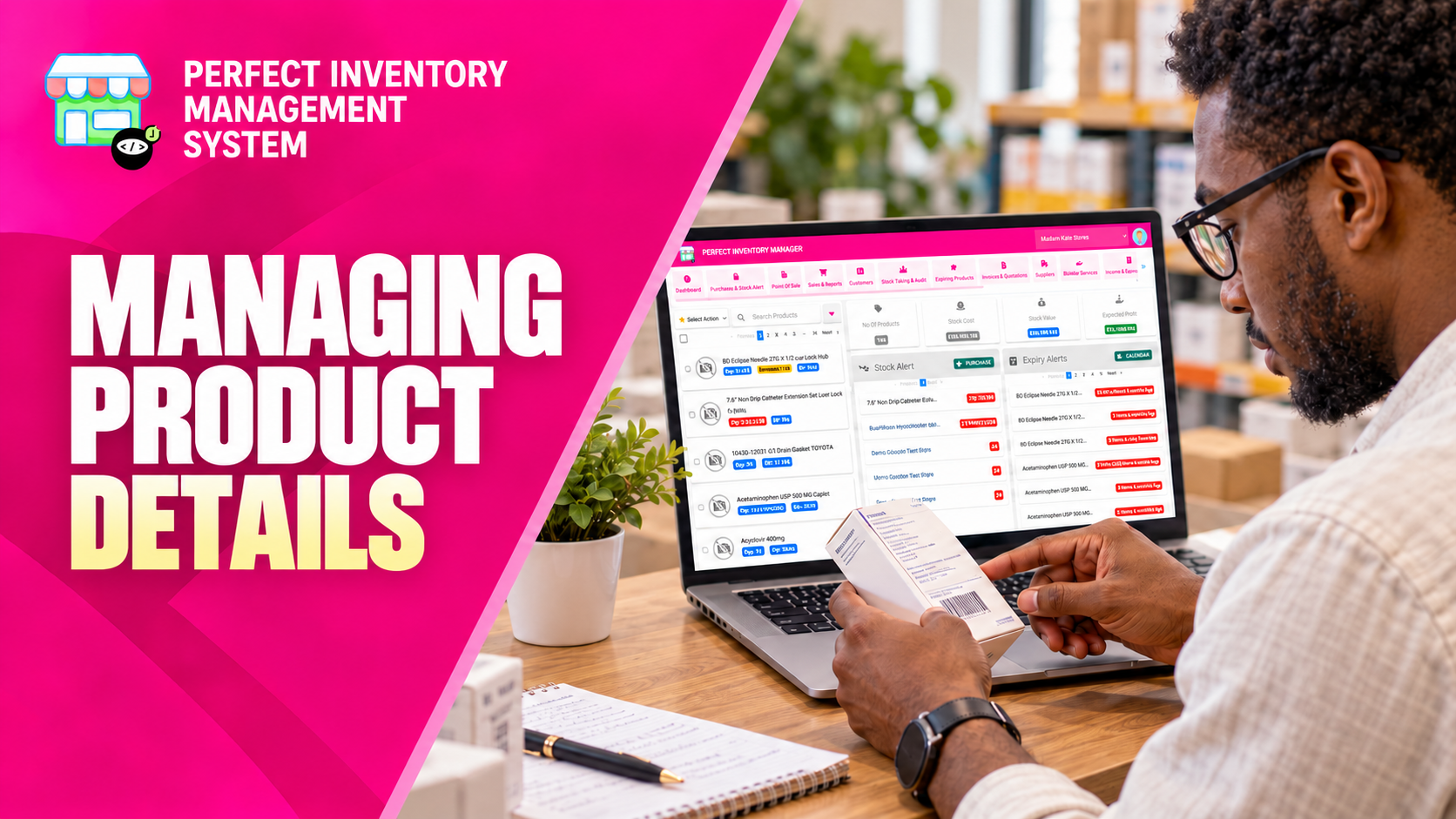
Use the product detail view as the place to understand and manage one item. Its tabs bring the current record, transaction history, notes and supporting documents together.
Know where each kind of information belongs
Opening a product from the catalog gives you access to Item, Timeline, Comments and Files. The Item view contains product information such as pricing, quantities, supplier, categories and batch details. Timeline explains recorded activity, while Comments and Files hold context and documents. Dedicated actions in the toolbar handle operations such as quantities, transfers and barcode printing, helping you keep operational changes traceable.
Step by step
Open and identify the item
Select the product from the catalog and confirm its name, barcode and variant before editing or recording a transaction.
Review the current details
Check pricing, available quantities, supplier, category and purchase batches. Distinguish the product’s identity from the details of individual deliveries.
Choose the relevant tab
Use Timeline for movement history, Comments for notes and Files for supporting documents. Look in the appropriate tab before creating duplicate information.
Use the appropriate action
Save product information changes, or use the dedicated quantity, batch, transfer or barcode action for that task. Review the resulting record after an operational change.
Choose the workflow that explains the change. A purchase, transfer or audit provides more useful history than an unexplained quantity correction.
Before you move on
- Confirm the correct product and store.
- Review batch details when costs or expiry dates differ.
- Save edits and check the relevant history after changes.
Watch the matching video lesson
Open the short lesson on YouTube. If it is unavailable, watch this section in the full tutorial.
Put the workflow into practice
Explore Perfect Inventory Management System and use these guides alongside your team’s daily work.
Open InventoryExplore the product