
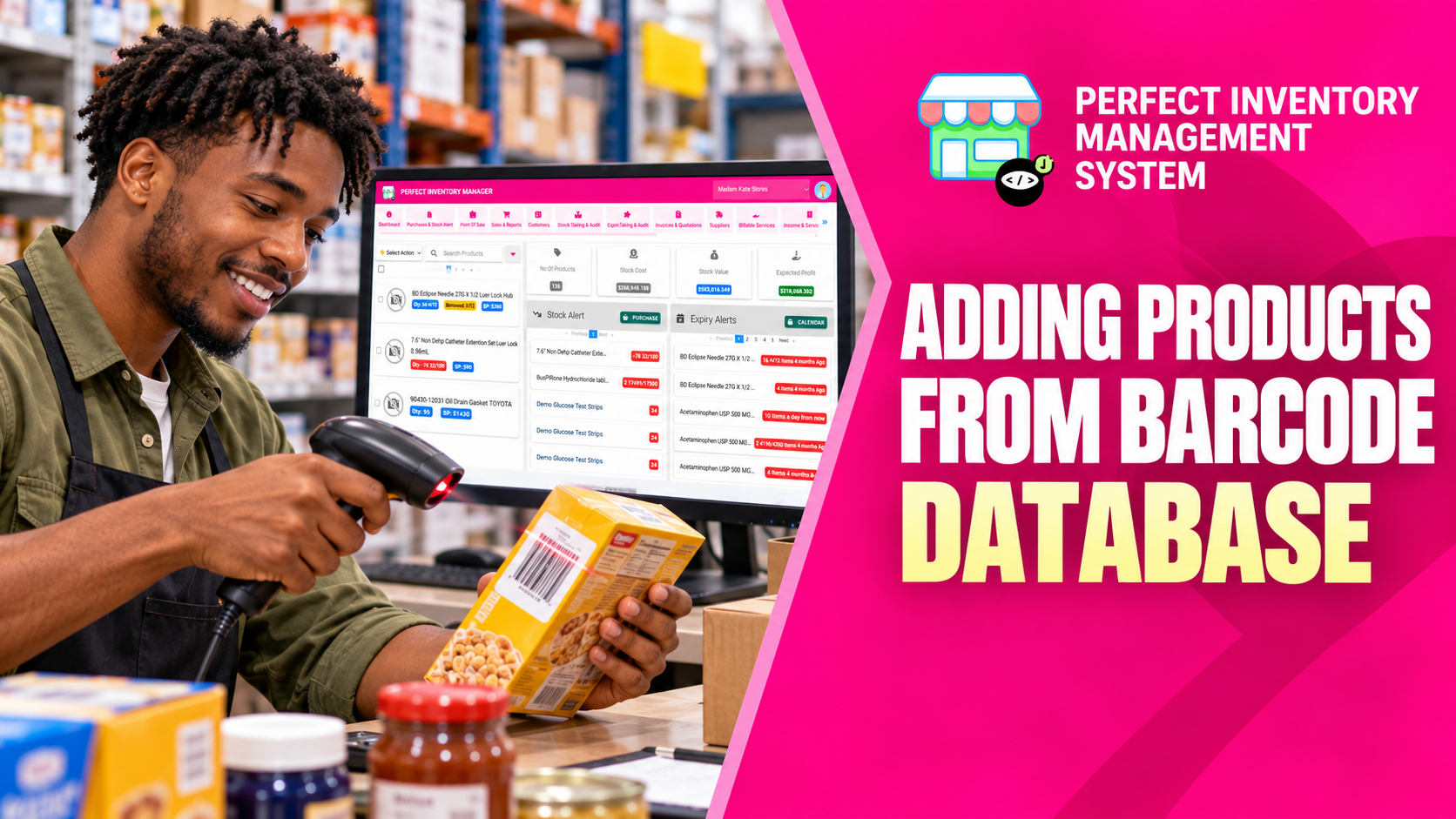
Use an existing barcode to look up product information and reduce repetitive typing. The barcode database can supply a starting point for the product record, while your own prices and stock quantities remain under your control.
Treat retrieved information as a starting point
Add from Barcode can retrieve details such as a product name, description, categories and image from Open Facts databases. Coverage depends on the barcode and the available database record. Even when a match exists, check that it describes the exact item and pack size in front of you. A database description cannot tell the system how much stock your business holds or what you paid for it.
Step by step
Choose Add from Barcode
Open the inventory action menu and select the barcode lookup option in the store where the product belongs.
Scan or type the code
Use the product’s printed barcode, or enter the digits manually. If no useful match is returned, create the item manually instead.
Review the returned details
Check the name, size, description, image and categories against the physical product. Correct anything that would confuse staff.
Add your business information
Enter your cost price, selling price, quantity and other local stock settings. Save the product and confirm that scanning identifies the intended record.
Barcode lookup speeds up catalog setup. It does not replace checking the product or entering your own purchasing and stock information.
Before you move on
- Confirm the complete barcode rather than a partial code.
- Review the product size and image.
- Enter local prices and stock; do not assume the lookup supplies them.
Watch the matching video lesson
Open the short lesson on YouTube. If it is unavailable, watch this section in the full tutorial.
Put the workflow into practice
Explore Perfect Inventory Management System and use these guides alongside your team’s daily work.
Open InventoryExplore the product