
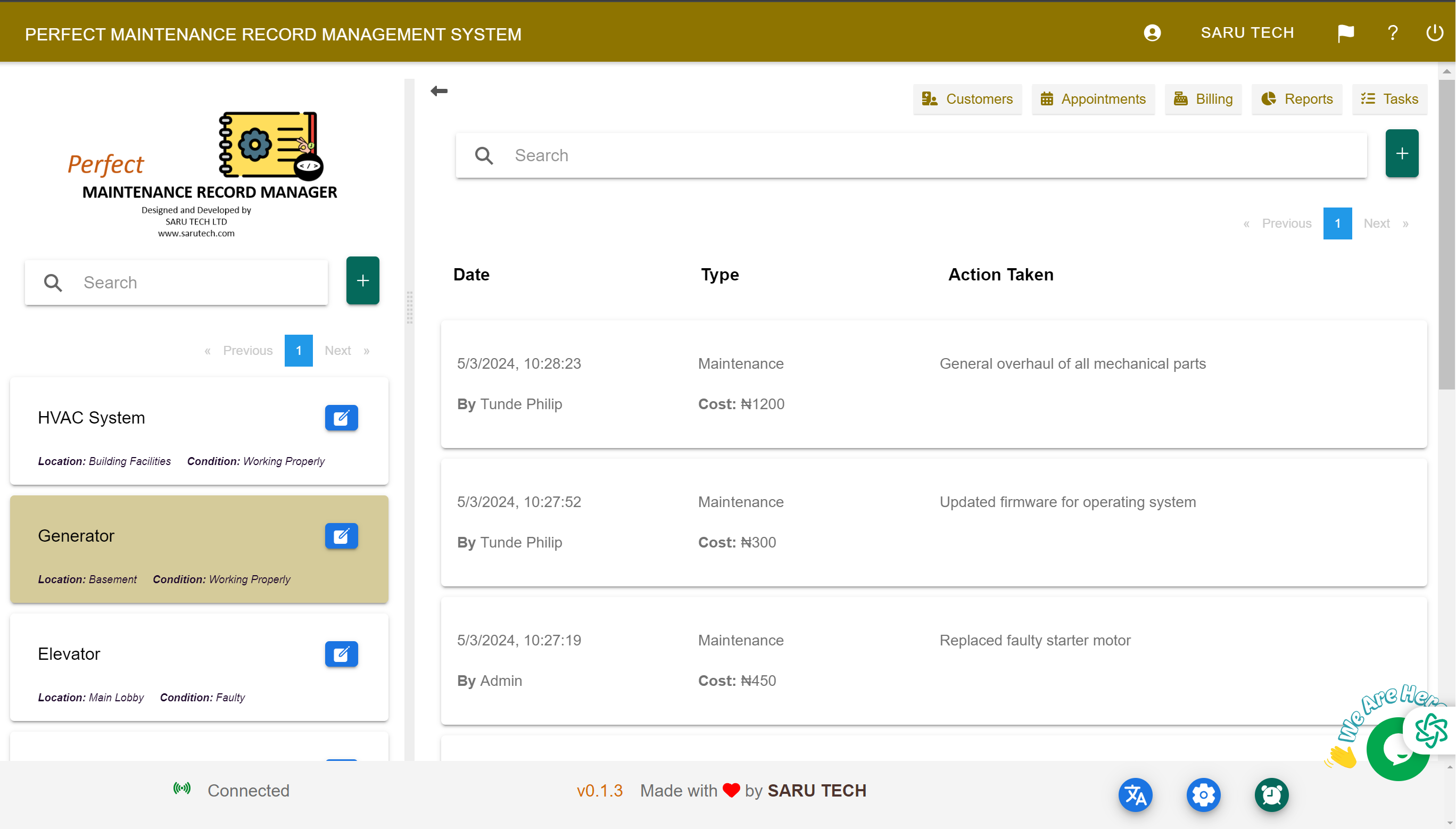
Add customers, focus the maintenance list on one client, and use Customer Management to review every related facility, asset, job, invoice, and payment.
Customers are the people or organisations whose sites and equipment you maintain. Creating a complete customer record gives facilities, assets, requests, invoices, and payments a clear owner.
Add a customer
- Open Customers and select Add Customer.
- Enter the customer or company name, contact person, telephone number, email address, physical address, and billing information.
- Add a photograph or company logo when it will help staff identify the account.
- Review the information and select Save.
Focus on one client's work
On the Maintenance page, open the Customers tab on the left and select a customer. The maintenance list on the right is filtered to show only requests connected to that customer. This is a quick way to review the client's active jobs, completed work, or service history.
Open the full customer record
Select the Edit button beside the customer to open the Customer Management page. This page provides a complete account view where you can:
- View and update contact, address, email, photo, and logo information.
- Review facilities and assets belonging to the customer.
- See maintenance requests, scheduled work, and related tasks.
- Open files, documents, invoices, payment records, and outstanding balances.
- Print customer information or prepare an email when those actions are available.
Recommended client-management routine
Search for an existing customer before creating a new one, so you do not divide their maintenance and billing history across duplicate accounts. When a contact person, address, or email changes, update the customer record instead of entering the new information only on the next request.